One hosting account can run several websites. You can add your own domain (for example yourcompany.com), another domain (yourcompany.net) or a subdomain (shop.yourcompany.com), and each one gets its own website folder.
There are two places to do this:
- Your main domain: the customer portal, if your hosting still uses the free
tackhost.comsubdomain, or you want to connect the domain you bought for this plan. - Extra domains and subdomains: the hosting control panel.
Option 1: Add your own domain from the portal
- Sign in to my.tackhost.com, open your hosting service, and find Add Your Own Domain.
- Type your domain, for example
yourcompany.com, and click Add Domain.

The domain is added with its website, DNS zone and email domain, and becomes the main domain shown on this service page. If the domain already points to us, the free SSL certificate is issued straight away. If not, point it to us as shown under the box (A record to 109.199.103.100, or nameservers ns1.tackhost.com and ns2.tackhost.com) and the certificate follows automatically once it does. See Point your domain to TackHost.
Option 2: Add a domain or subdomain in the control panel
- In the portal, open your hosting service and click Open Control Panel.
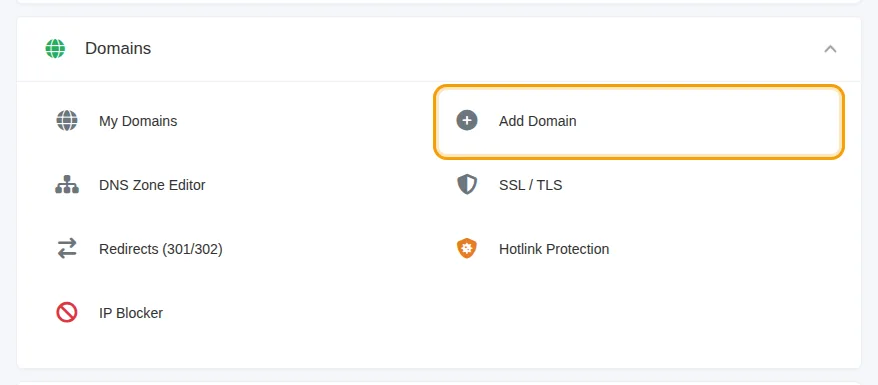
- On the control panel Home page, open Domains and click Add Domain.
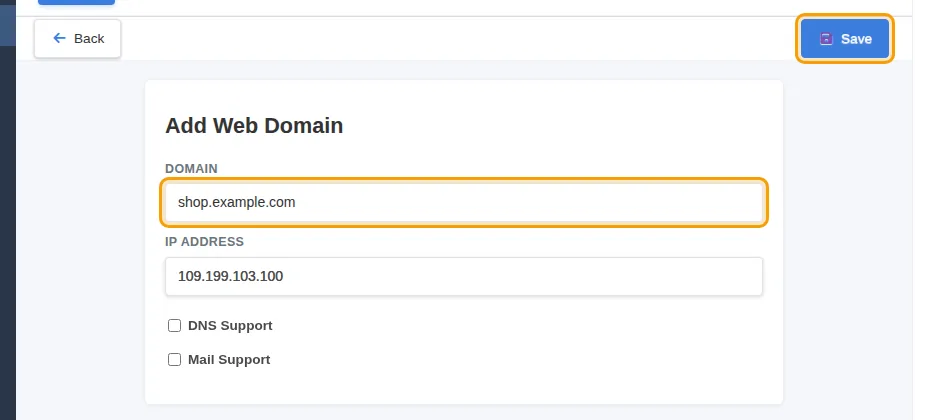
- In Domain, type the name without
wwworhttps://, for exampleshop.yourcompany.comfor a subdomain oryourcompany.netfor another domain. Leave IP Address as it is.
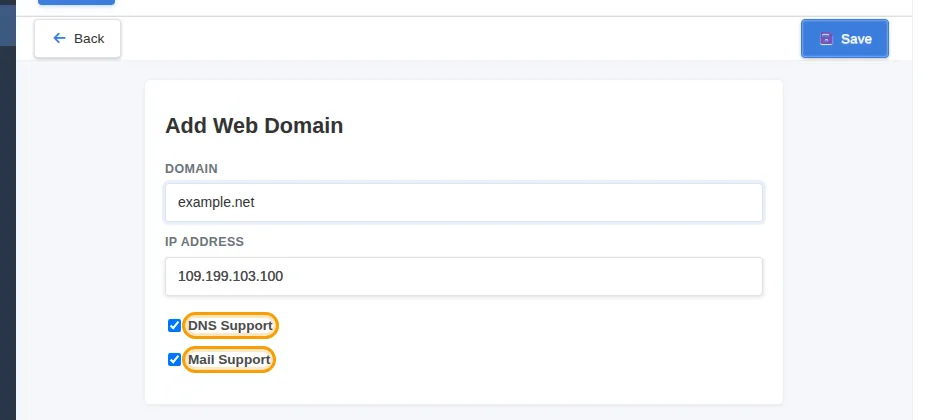
- Tick the options that apply:
- DNS Support: tick it for a new domain that will use the TackHost nameservers. It creates the domain's DNS zone, so you can manage its records here.
- Mail Support: tick it if you want email addresses at this domain, such as
info@yourcompany.net.
- Click Save.
For a subdomain, leave both boxes unticked: it uses the DNS of the main domain. If the main domain uses the TackHost nameservers, add an A record for the subdomain (for example shop) that points to 109.199.103.100. See Manage DNS records.
After adding it
- Upload the website: the new domain has its own folder in the File Manager,
web/yourcompany.net/public_html. Upload your files there, or install WordPress on it. See File Manager and Install WordPress. - Turn on HTTPS: once the domain points to our server, issue the free SSL certificate. See Enable free SSL.
- Create mailboxes: if you ticked Mail Support, see Create an email account.
Good to know
- Your plan sets how many domains and subdomains you can add. The Statistics panel on the right of the control panel shows how many you use (Domains and Subdomains / Aliases).
www.yourcompany.netis added together with the domain. You do not need to add it separately.- Adding a domain here does not register it. To buy a new name, see Register a new domain.
Need help? Open a support ticket and we will add it for you.