The File Manager lets you upload, edit, move and delete your website files straight from your browser, with nothing to install. It is the quickest way to upload a small website, change one file, or unpack a .zip file.
Where is this? In the hosting control panel. Open it from my.tackhost.com > Services > your hosting plan > Open Control Panel.
1. Open the File Manager
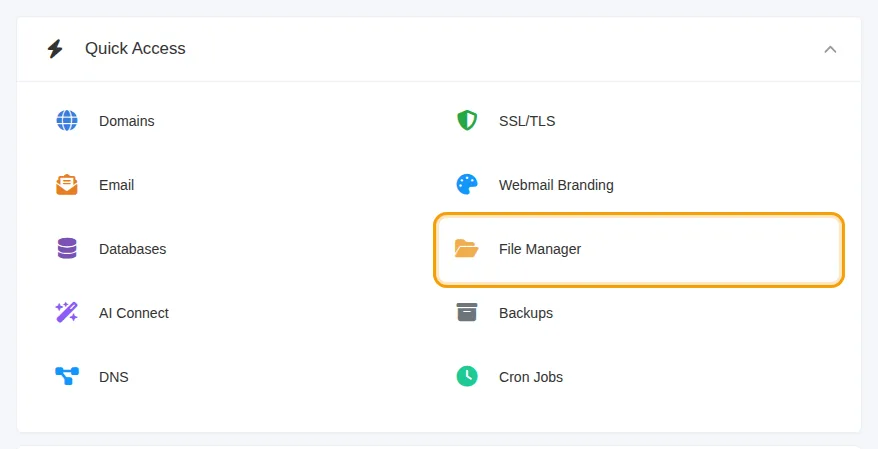
Click File Manager in Quick Access on the Home page, or in the side menu.
2. Find your website folder
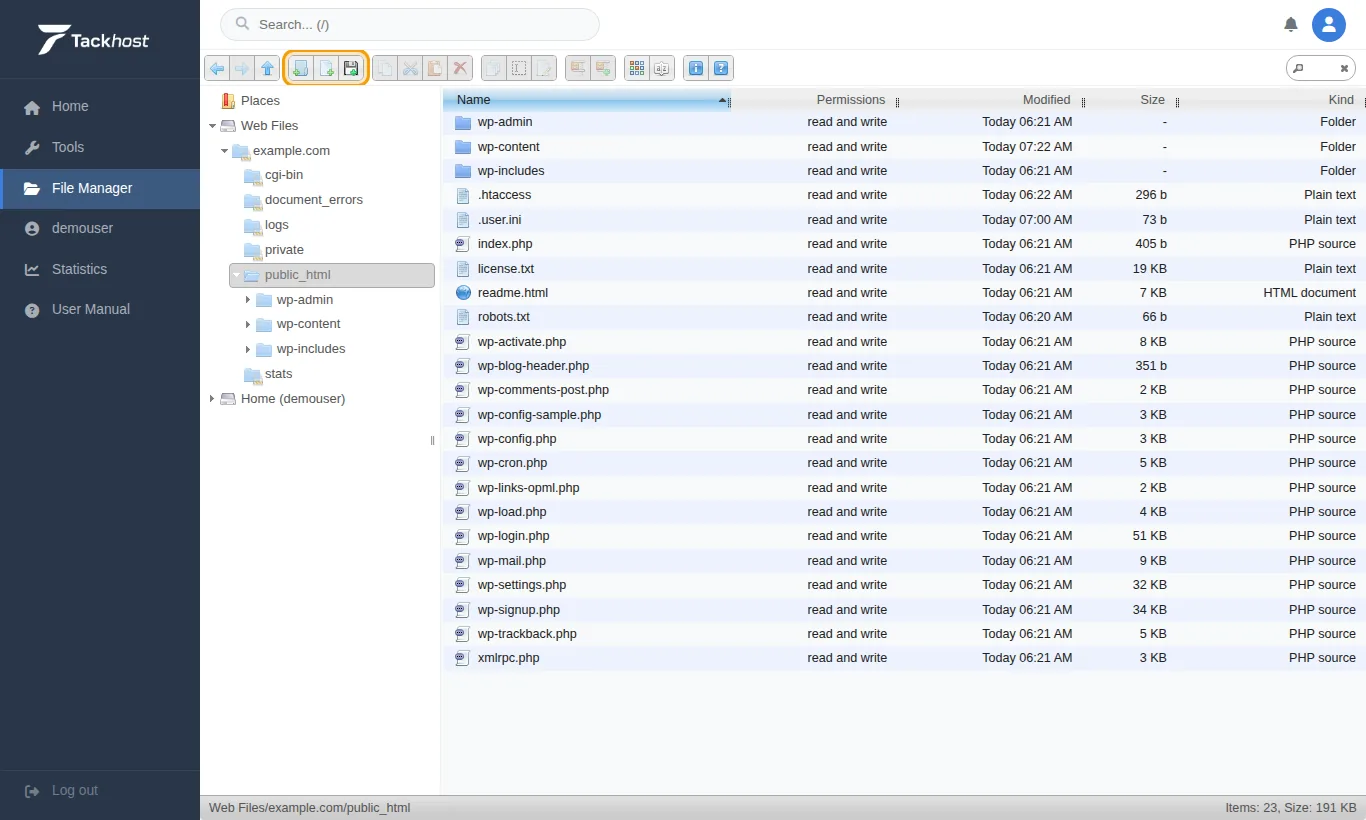
On the left you see two places:
- Web Files: one folder per domain. Your website is in Web Files >
yourdomain.com>public_html. - Home: your whole account folder.
Double-click folders to open them, or click them in the tree on the left. The bottom bar shows where you are, for example Web Files/yourdomain.com/public_html.
3. Upload files
- Open
public_html. - Click the upload button in the toolbar (highlighted above), or right-click an empty area and choose Upload files.
- Drag your files into the box, or click Select files (or Select folder).
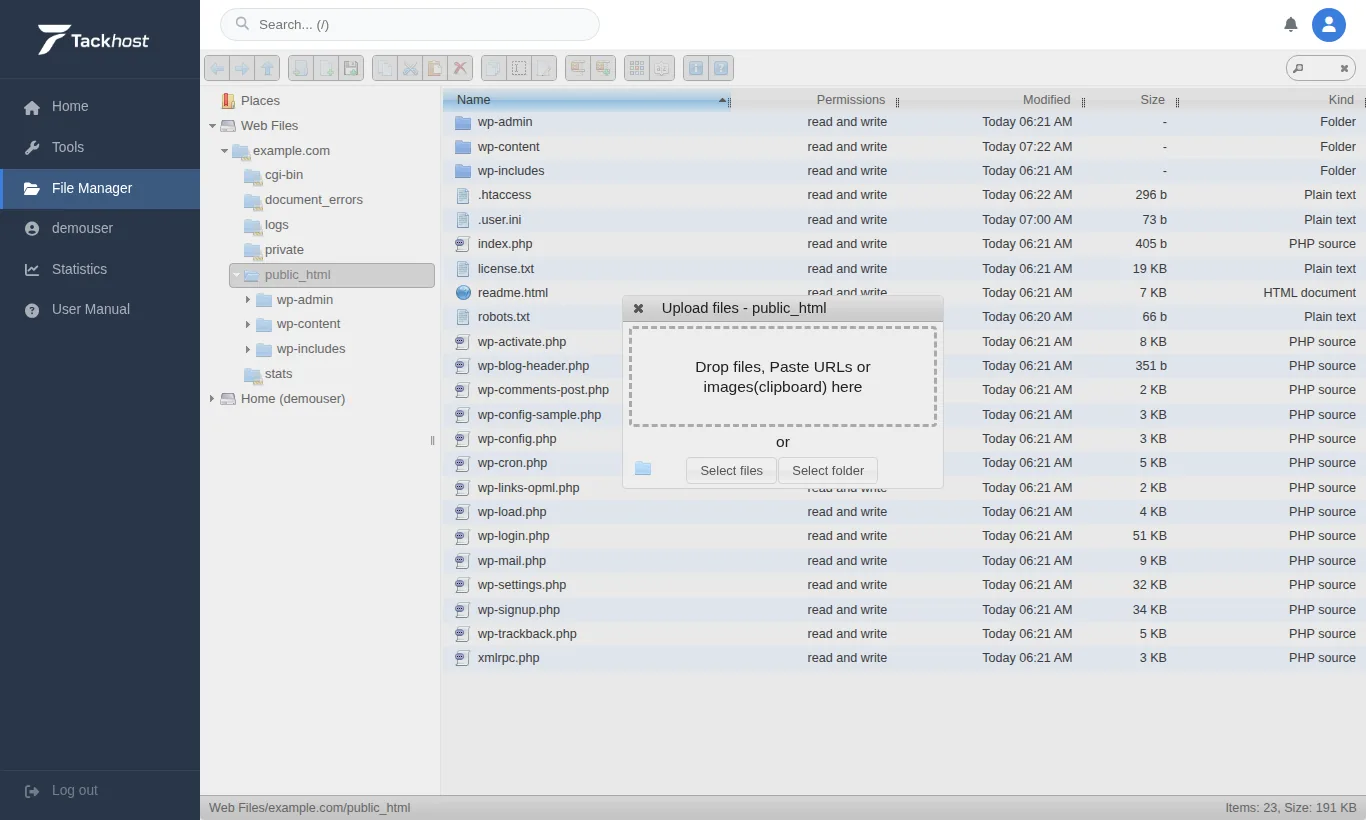
Each file can be up to 256 MB. For a whole website, upload one .zip file and extract it (next step).
4. Work with a file
Right-click a file to see what you can do with it:
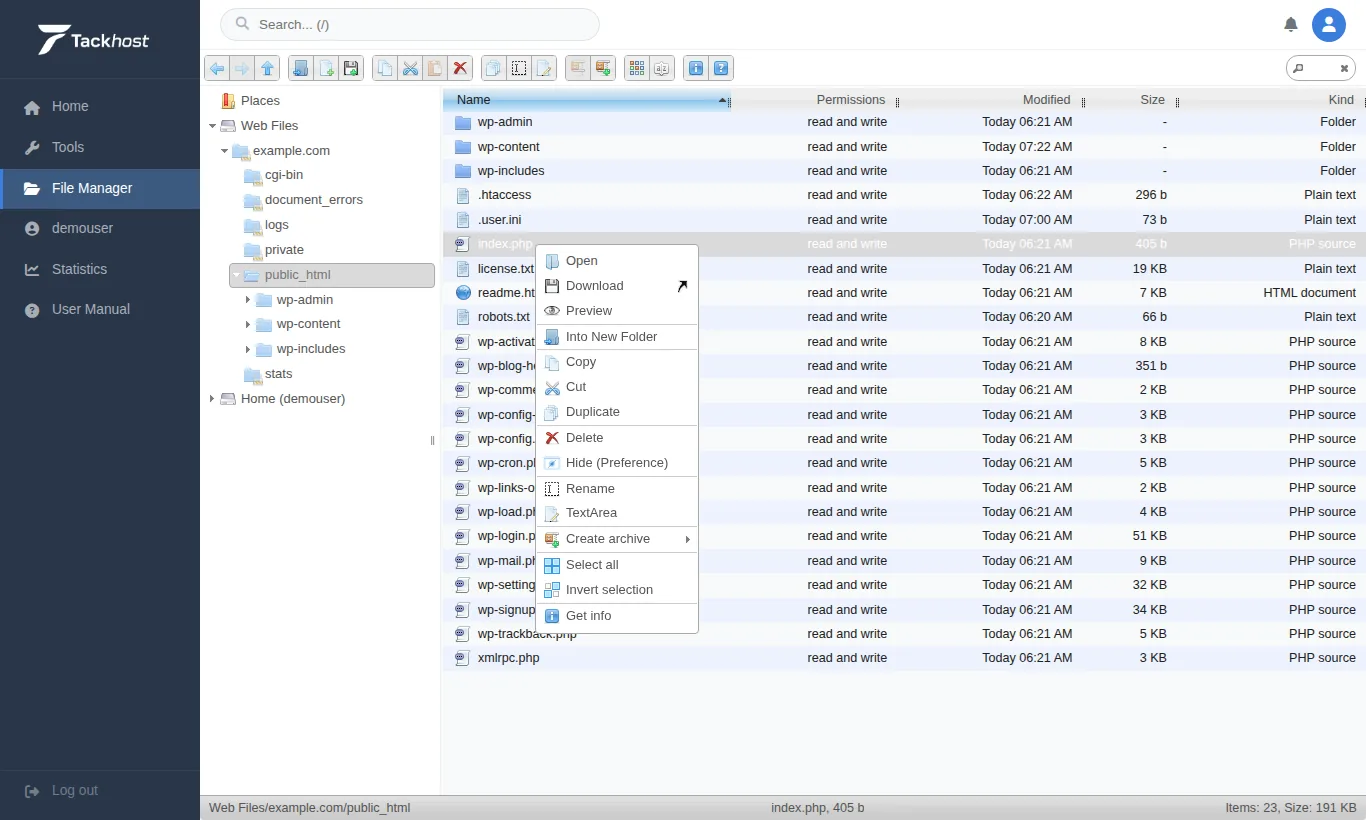
- Download: save a copy to your computer.
- TextArea: edit a text file (HTML, CSS, PHP,
.htaccess) in the browser. Click Save when done. - Rename, Copy, Cut, Duplicate and Delete.
- Create archive: pack the selected files into a
.zip. - Extract files from archive: shown when you right-click a
.zipor other archive. Unpacks it. - Get info: size, date and permissions.
To select several files, hold Ctrl (or Cmd on a Mac) while you click.
Good to know
- Deleted files cannot be recovered from the File Manager. Download a copy first, or restore from a backup: see Backups and restoring.
- Files whose names start with a dot (such as
.htaccess) are shown too. Edit them with care: a mistake in.htaccesscan take your site offline. - For many files or regular updates, FTP may be more comfortable: see Upload your website.
- The File Manager is shown in English, also when the panel is in Arabic.
Troubleshooting
- The page is empty after uploading: make sure the files are inside
public_htmland that one of them is namedindex.htmlorindex.php. - An upload stops halfway: check your connection and try again, or split the upload into smaller
.zipfiles.
Need help? Open a support ticket and we will help you upload your site.