TackHost backs up your hosting account automatically every night: your website files, databases, email and settings. You do not need to switch anything on. If something goes wrong, you can restore your site, a mailbox or a database from the control panel.
Where is this? In the hosting control panel. Open it from my.tackhost.com > Services > your hosting plan > Open Control Panel.
1. Open your backups
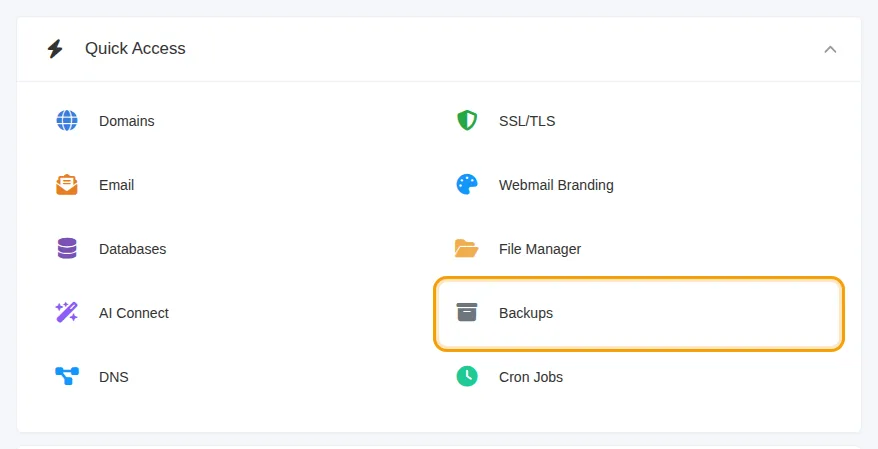
Click Backups in Quick Access on the Home page, or the BACKUP tab at the top of any page.
2. See your backup list
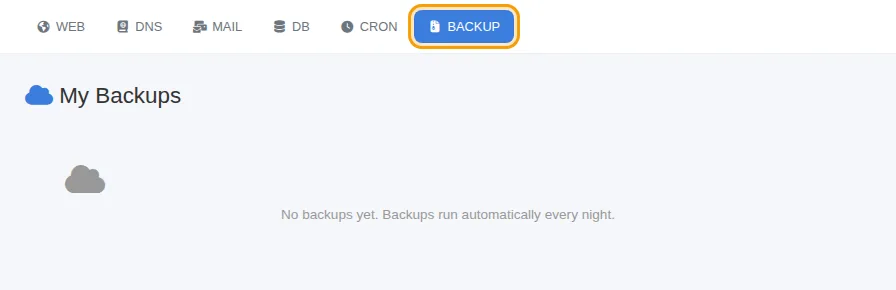
The My Backups page lists the backups kept for your account, with their Size and Date. Each one has a Restore button and a download button.
If your account is new, the list is still empty. Your first backup appears after the next night:
3. Restore what you need
- Click Restore next to the backup from the date you want to go back to.
- The Backup Details page shows what that backup contains, by type: Web Domain, Mail Domain, Database, DNS Zone, Cron Jobs and User Directory.
- Click the restore button next to only the item you need, for example just your website or just one database, and confirm.
- Or click Restore All to bring back everything in that backup.
The restore runs in the background. Large sites can take a few minutes.
Restoring overwrites. Restoring your website replaces the current files with the ones in the backup, and restoring a database replaces its current contents. Anything you changed after that backup's date is lost. If you are unsure, download the backup first, or open a support ticket and we will restore it with you.
4. Download a copy
Click the download button next to a backup to save the whole backup file (a .tar archive) to your computer. Keeping your own copy from time to time is a good habit.
Good to know
- Restore only what you need. If one page of your site is broken, restoring the website alone is safer than Restore All, which also restores email and databases.
- To undo a WordPress problem, restore both the website and its database from the same date, so they match.
- Backups also exist outside your account, kept by TackHost. If what you need is not in your list, open a support ticket: tell us the date and what to restore.
- Before big changes (a WordPress update, a new theme), download a copy of your site with the File Manager or download the latest backup.
Need help? Open a support ticket and we will restore it for you.