DNS records tell the internet where each part of your domain lives: which server shows your website, which server receives your email, and how other services (Google, Microsoft 365, payment or marketing tools) can verify that you own the domain. You view and add them in the DNS Zone Editor of the hosting control panel.
Use this only if your domain uses the TackHost nameservers (
ns1.tackhost.comandns2.tackhost.com). If your domain uses another company's nameservers (for example your registrar's or Cloudflare's), records you add here have no effect: add them at that company instead. To check or change your nameservers, see Manage your domain or Point your domain to TackHost.
1. Open your domain's DNS records
- Sign in to my.tackhost.com, open your hosting service and click Open Control Panel.
- On the control panel Home page, click DNS in Quick Access (or DNS Zone Editor under Domains).
- Click your domain's name.
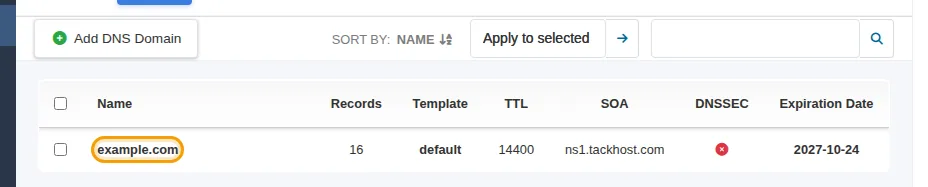
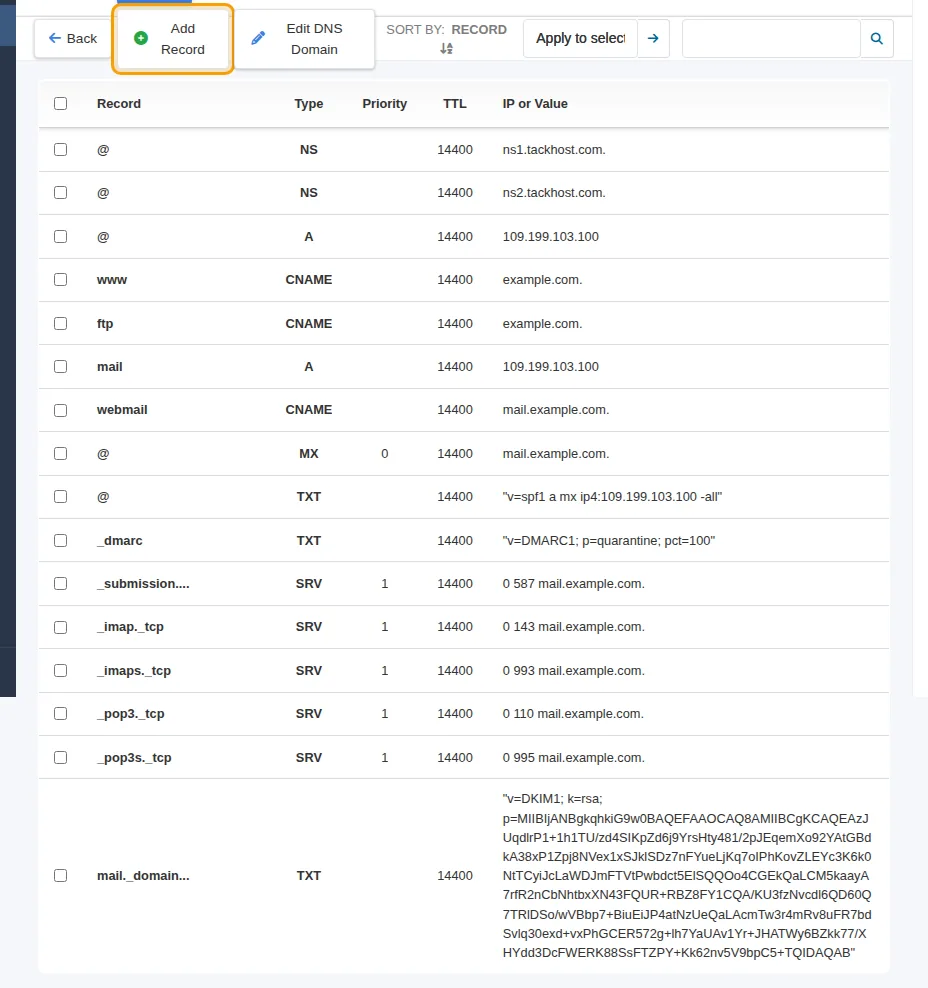
You now see all the records of the domain. A new domain already has the records it needs for the website and email on TackHost, so you only add records when a service asks you to.
2. Add a record
- Click Add Record.
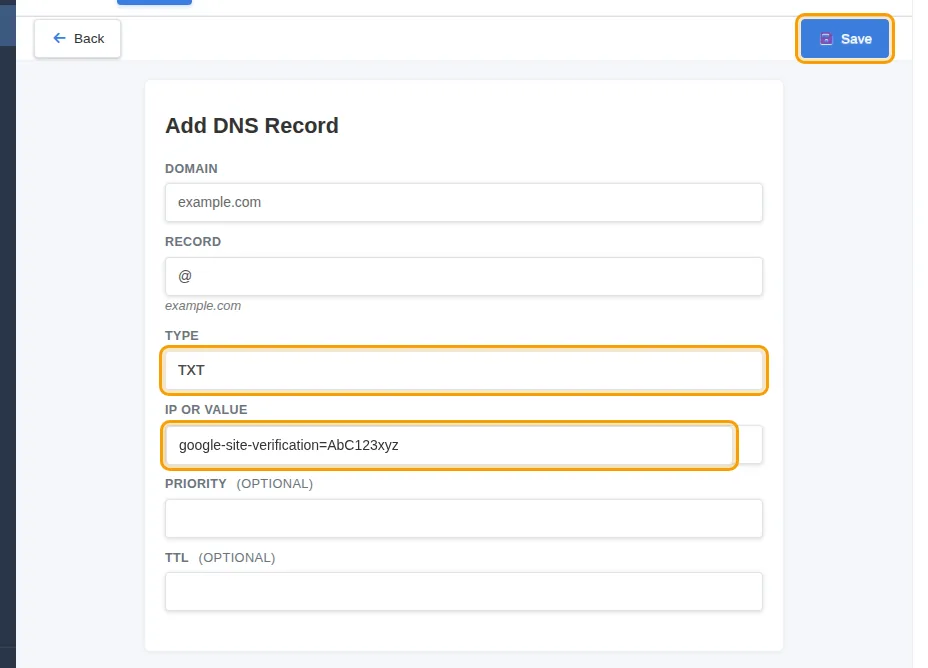
- Record: the part before your domain. Use
@for the domain itself (yourdomain.com), or a name such aswwworshop(forshop.yourdomain.com). The full name is shown under the box. - Type: choose the record type (see the table below).
- IP or Value: paste the value the service gave you.
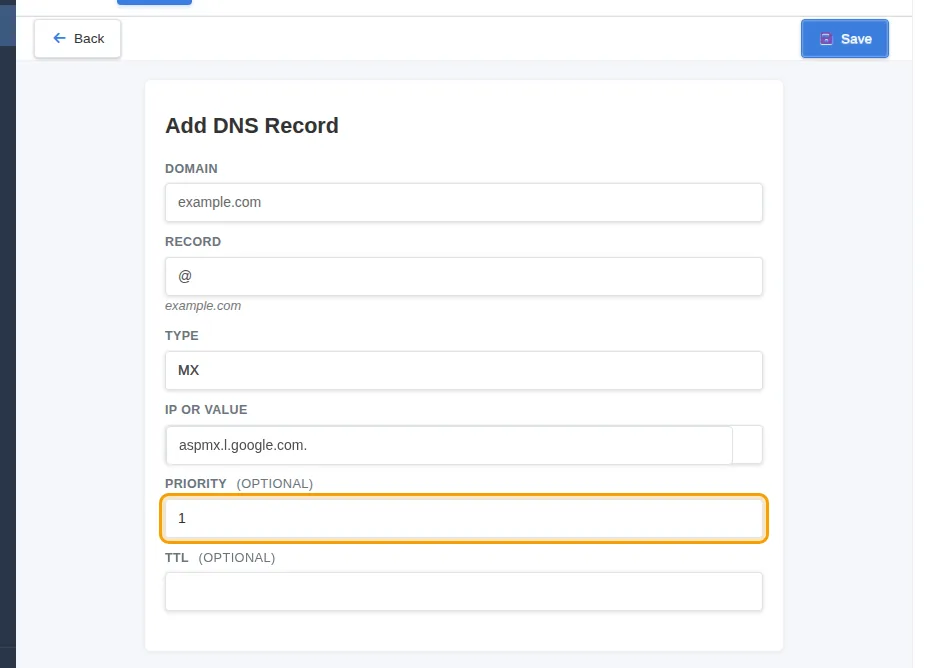
- Priority: only for MX records. Leave TTL empty.
- Click Save.
Example: a TXT record to verify your domain with Google:
Example: an MX record, which also needs a Priority:
Which type do I need?
| Type | What it does | Example |
|---|---|---|
| A | Points a name to a server IP address | shop → 109.199.103.100 |
| CNAME | Makes a name an alias of another name | www → yourdomain.com |
| MX | Says which server receives the domain's email | @ → mail.yourdomain.com, priority 0 |
| TXT | Text used for verification and email security (SPF, DKIM, DMARC) | @ → google-site-verification=... |
Change or delete a record
Move the mouse over a record to show its edit and delete buttons. Be careful with the records the domain already has:
- the A records for
@andmailand the MX record make your website and email work on TackHost, - the TXT records for
@(SPF),_dmarcandmail._domainkey(DKIM) help your email reach the inbox.
If you move your email to another provider (for example Google Workspace), replace the MX record with the ones they give you, and update the SPF record as they explain. See Email deliverability.
Good to know
- Changes can take from a few minutes up to a few hours to be seen everywhere on the internet.
- Most services give you the value to copy. Copy it exactly, without extra spaces.
- You can also see and add records from your hosting service page in the portal, under DNS Records.
Not sure what to add? Open a support ticket with the instructions you received and we will add the record for you.