Every domain you register or transfer with TackHost has its own page on the customer portal. From there you can change where the domain points (nameservers), turn auto-renew, WHOIS privacy and the transfer lock on or off, get the transfer code, and update the owner and contact details.
Where is this? On the customer portal my.tackhost.com, under Domains. The DNS records of the domain (A, MX, TXT and so on) are edited in the hosting control panel instead. See Manage DNS records.
1. Open your domain
Sign in to my.tackhost.com, click Domains in the side menu, and click Manage on the domain.
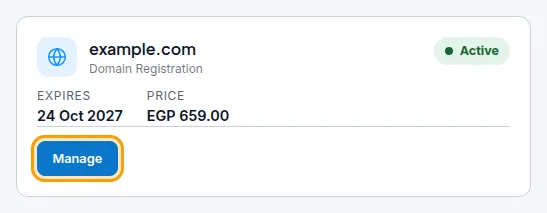
The card also shows when the domain Expires. When a renewal invoice is waiting, a Renew Domain button appears next to Manage: click it to pay the renewal. See Pay an invoice.
2. Nameservers
The nameservers decide which company answers for your domain on the internet: where the website opens and where email is delivered.
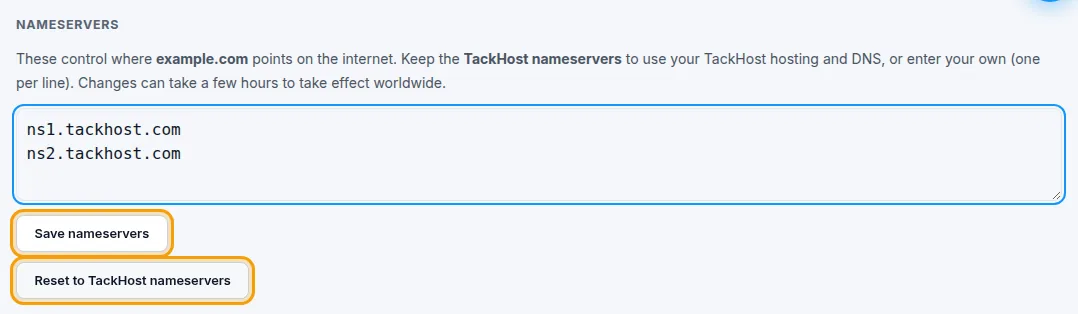
- To use your TackHost hosting and DNS, keep
ns1.tackhost.comandns2.tackhost.com. If someone changed them, click Reset to TackHost nameservers. - To use other nameservers (for example a CDN or another DNS provider), type them in the box, one per line, and click Save nameservers. Enter at least two.
Changes can take a few hours to take effect worldwide.
3. Domain settings
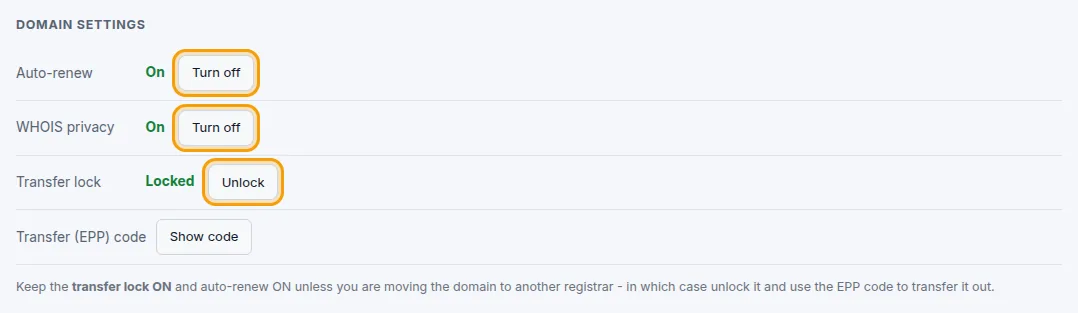
- Auto-renew: keeps the domain from expiring by accident. Keep it On.
- WHOIS privacy: hides your name, phone and address from the public WHOIS lookup. It is free; keep it On.
- Transfer lock: stops anyone from moving the domain to another company. Keep it Locked.
- Transfer (EPP) code: click Show code to see the code that another registrar asks for when you move the domain away from TackHost. If the code does not appear, Unlock the transfer lock first and try again.
Each button changes the setting straight away and the page shows the new state.
4. Domain contacts (WHOIS)
These are the owner and contact details on record for the domain. There are four roles: Registrant (owner), Administrative, Technical and Billing. You can edit each one separately.
- Click Edit next to the role.
- Fill in the fields. Those marked with
*are required. Write the phone as+20.1000000000(country code, a dot, then the number) and the country as a 2-letter code, for exampleEG. - Click Save contact.
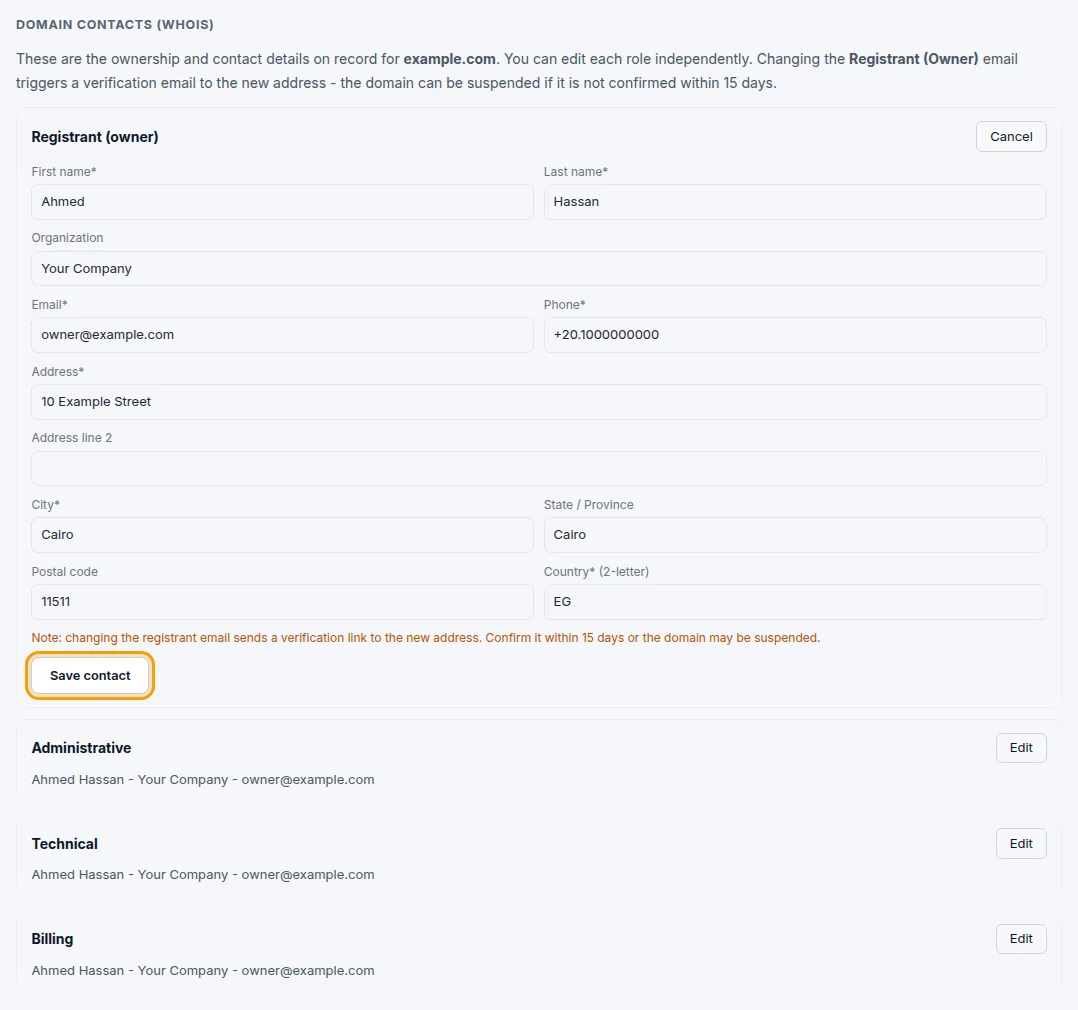
Important: if you change the Registrant (owner) email, a verification email is sent to the new address. Open it and click the link within 15 days, or the domain may be suspended.
Good to know
- Keep the registrant email set to an address you read: verification emails are sent to it.
- Changing nameservers does not move your website or email by itself. To host the site with us, the domain must also be added to your hosting account. See Add a domain to your hosting.
- If the page says the settings are temporarily unavailable, nothing is wrong with your domain: the registrar could not be reached for a moment. Refresh the page a minute later.
- Moving your domain to another company: unlock it, click Show code, and give the code to your new registrar.
Need help? Open a support ticket and we will make the change with you.