Besides PHP and WordPress sites, your hosting can run Node.js applications (for example an Express API, a Next.js site or a small bot with a web page). You upload the app's files, pick a domain and click Deploy App. The panel installs the packages, builds the app, starts it, connects the domain to it and keeps it running, also after a server restart.
Where is this? In the hosting control panel (the panel you open from my.tackhost.com with Open Control Panel), not on the my.tackhost.com website itself.
Important: a deployed app takes over the whole domain. Whatever that domain showed before (for example a WordPress site) is no longer shown while the app runs. Use a separate domain or a subdomain such as
app.yourdomain.comfor the app. See Add a domain to your hosting.
1. Open Node.js Apps
- Sign in to my.tackhost.com, open your hosting service and click Open Control Panel.
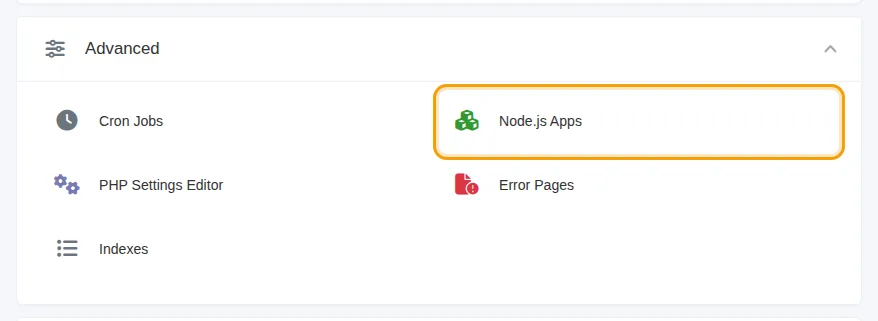
- On the control panel Home page, open Advanced and click Node.js Apps.
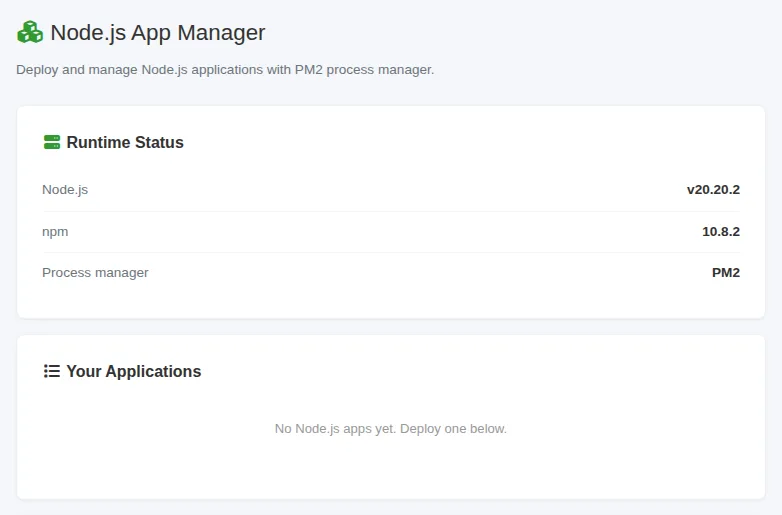
The page opens with Runtime Status (the Node.js and npm versions on the server) and Your Applications, the list of apps you have deployed:
2. Prepare your app
Before you upload, check two things in your code:
- How it starts. Either a
package.jsonwith astartscript (the panel runsnpm start), or a main file namedserver.js,index.jsorapp.js. - Which port it listens on. Your app must listen on the port given in the
PORTenvironment variable, for exampleapp.listen(process.env.PORT). The panel chooses the port and passes it to your app.
You do not need to upload the node_modules folder. The panel installs the packages listed in package.json for you, and if package.json has a build script (as Next.js apps do), it runs that too.
3. Upload the app
Upload your app's files into a folder named nodeapp inside your domain's folder:
/home/USERNAME/web/yourdomain.com/nodeapp/
You can do this with the File Manager (open Web Files, then your domain, create a folder named nodeapp and upload into it) or with an FTP program. See Upload files with FTP. The exact path for each domain appears in step 2 of the deploy form once you choose the domain.
4. Deploy
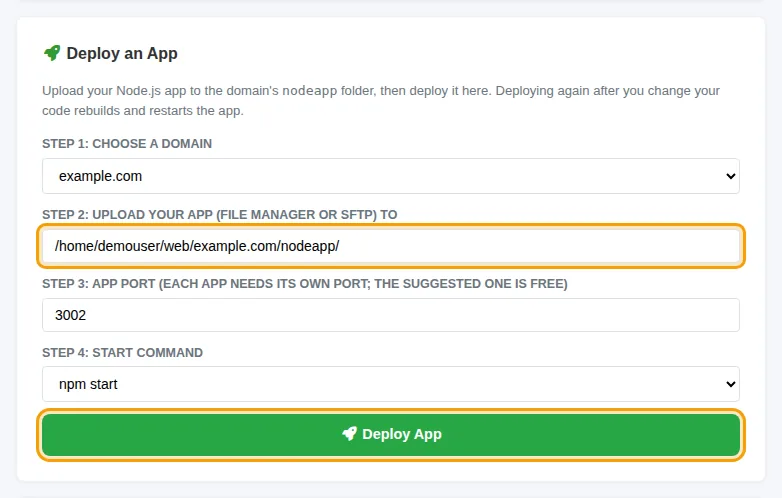
In Deploy an App:
- Step 1: Choose a domain. Pick the domain (or subdomain) the app should answer on.
- Step 2: Upload your app. This box shows the folder where the panel expects your files. It is filled in for you.
- Step 3: App port. Leave the suggested port as it is. It is free. Each app needs its own port.
- Step 4: Start command. Choose
npm start, ornode server.js,node index.jsornode app.jsto match your app. - Click Deploy App.
The page then shows the deploy progress and refreshes by itself. Installing packages and building can take a few minutes. When it finishes you see Deployed. Your app is live at followed by your domain's address. If something fails, the page shows the log of the step that failed: fix the problem in your files and click Deploy App again.
Update, restart or remove an app
Each app in Your Applications shows whether it is running (online), its port, memory and CPU use, and how long it has been running. The buttons next to it:
- Restart (circular arrow): restarts the app, for example after you changed a setting file.
- Stop / Start (pause / play): stops the app or starts it again.
- Delete (bin): removes the app. The domain goes back to normal web hosting. Your files in
nodeappare not deleted. - Log (page icon): shows the log of the last deploy.
Changed your code? Upload the new files to the same nodeapp folder and deploy again with the same domain. The panel reinstalls, rebuilds and restarts the app.
Troubleshooting
- "no package.json ... upload your app there first": the files are not in the
nodeappfolder of that domain, or they are inside an extra sub-folder.package.jsonmust be directly insidenodeapp. - "port ... choose another port": another app already uses that port. Reload the page and use the suggested port.
- "the server is busy with other deploys": only a few deploys run at the same time. Try again in a few minutes.
- The site shows an error after a successful deploy: make sure your app listens on
process.env.PORT, not on a fixed port number written in the code. - The site is not secure (no padlock): issue an SSL certificate for that domain. See Enable free SSL.
Need help? Open a support ticket with your domain name and, if the deploy failed, a copy of the log.