You do not need to share your password with your accountant, your web designer or your IT person. Invite them to your account instead: each colleague signs in with their own email and password and gets only the access their role allows. You can change their role or remove them at any time.
Where is this? In the customer portal, my.tackhost.com, on the Team page. Only the account owner can invite and manage team members.
1. Open the Team page
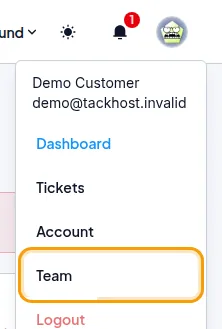
Sign in to my.tackhost.com, click your profile picture at the top right and choose Team.
2. Choose a role
| Role | What the colleague can do |
|---|---|
| Manager | Everything on your account: services, the control panel, domains, invoices and payments, tickets. Only managing the team and closing the account stay with you. |
| Billing | See and pay invoices, and see your services. Good for an accountant. |
| Support | Open and answer tickets, see your services and domains, and open the hosting control panel. Good for a web designer or IT person. |
| Read-only | See your services, domains, invoices and tickets without changing anything. |
Pick the smallest role that lets the person do their job. You can change it later.
3. Send the invitation
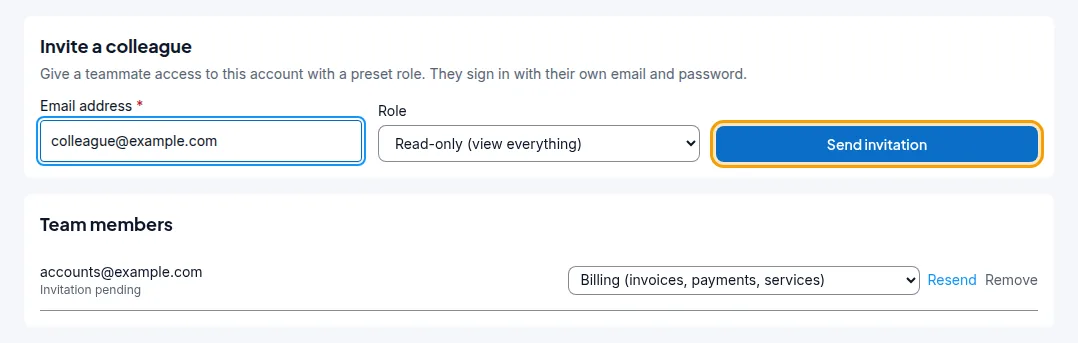
- Under Invite a colleague, type the colleague's Email address, for example
accounts@yourcompany.com. - Choose the Role.
- Click Send invitation.
The colleague receives an email with an invitation link, and appears under Team members as Invitation pending.
4. What your colleague does
- They open the link in the invitation email.
- New to TackHost: they enter their first name, last name and a password (at least 8 characters, with letters and numbers), then click Create account & accept. Already have a my.tackhost.com account with that email: they click Sign in to accept and sign in with their own password.
- That is it. You receive an email when they join, and their status changes to Active.
When they sign in, your account appears in their account menu (top right) next to their own; they click your name to switch to it. While they work in your account, a bar at the top says You are viewing ...'s account. with a Switch back to your account link.
Manage your team
On the Team page, next to each colleague:
- Role list: choose a different role; it applies immediately.
- Resend: sends the invitation email again (while the invitation is pending).
- Suspend / Reactivate: cut off access temporarily, and give it back later.
- Remove: takes the colleague off your account for good. To give access again, send a new invitation.
Good to know
- An invitation link works once. If it has been used or the colleague was removed, send a new invitation.
- Tickets and payments made by a colleague belong to your account. A colleague with the Billing role pays your invoices on your behalf; see How to pay an invoice.
- Colleagues with the Support or Manager role can open tickets for you; see Open a support ticket.
- When someone leaves your company, remove them from the Team page the same day.
Need help? Open a support ticket.