A support ticket is the best way to get help from the TackHost team: your question, our answers and any files stay together in one place, and every reply also reaches you by email. Our support team is available 24/7; on Fridays and Saturdays replies may take a little longer.
Where is this? In the customer portal, my.tackhost.com, under Tickets. Not in the hosting control panel.
1. Open your tickets
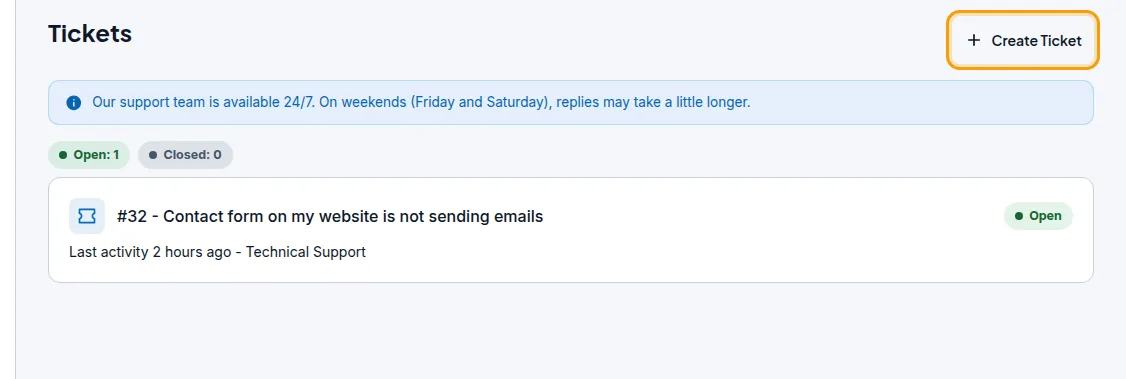
Sign in to my.tackhost.com and click Tickets in the menu. The page lists your tickets with their number, subject, last activity, department and status. The counters at the top show how many are Open and Closed.
Click Create Ticket to ask something new.
2. Fill in the ticket
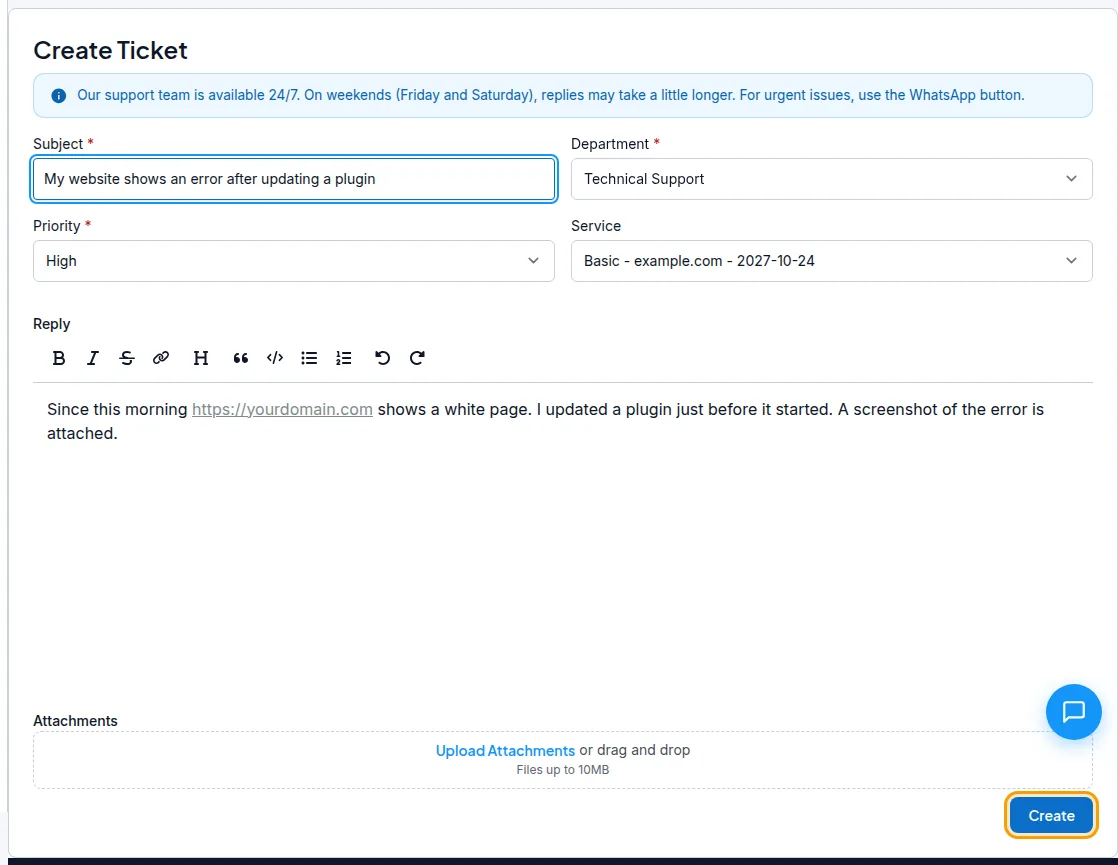
- Subject: one short line that says what is wrong, for example My website shows an error after updating a plugin.
- Department: choose the team that should answer:
- Technical Support for websites, email, domains pointing, SSL and the control panel.
- Sales for questions before you buy.
- Billing for invoices, payments and renewals.
- General for anything else.
- Priority: Low, Medium or High. Use High when your website or email is down.
- Service: pick the hosting service or domain the question is about. This saves us a round of questions.
- Message (the large box under Reply): describe what happened, when it started, what you changed just before, and the exact error text. Include the address of the page that fails, for example
https://yourdomain.com/contact. The toolbar adds bold text, links, lists and code. - Attachments (optional): click Upload Attachments or drag files into the box. A screenshot of the error helps a lot. Each file can be up to 10 MB.
- Click Create.
Your ticket opens straight away and our team is notified.
Never send passwords in a ticket. We do not need your control panel, email or WordPress password to help you. If access is needed, we will tell you how to give it safely.
3. Read and answer our replies
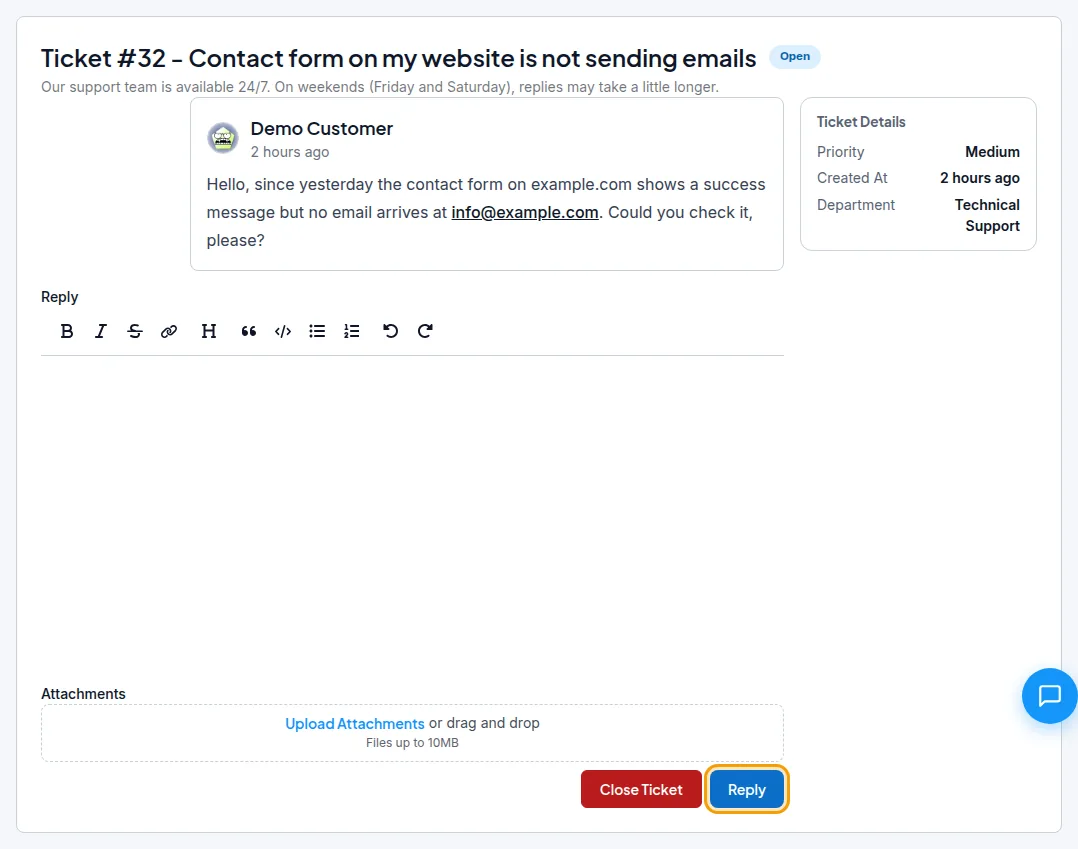
Open the ticket from Tickets to see the whole conversation. Your messages and ours appear in order, with any attached files under each message; pictures are shown directly. The page refreshes by itself, so a new reply appears without reloading.
- Where our answers arrive: on the ticket page and by email to your portal account address, with the subject New reply on ticket #....
- To answer, type in the Reply box, add attachments if needed, and click Reply.
- The status at the top tells you where things stand: Open (with our team), Awaiting your reply (we answered and are waiting for you; the ticket list shows this as Replied) or Closed.
- Close Ticket closes it when your issue is solved.
Good to know
- A ticket that is Awaiting your reply closes by itself after 14 days without an answer. If you still need help, reply to it: a closed ticket opens again as soon as you write.
- One problem per ticket. A separate ticket for each issue gets each one to the right person faster.
- If you invited colleagues to your account, those with the Support or Manager role can open and answer tickets for you too. See Team members.
- Billing questions are fastest with the invoice number in the message. See How to pay an invoice.
- If you do not see our reply emails, check your spam folder and that ticket emails are switched on under Account > Notifications.
Ready? Open a support ticket now.