The spam filter checks every message that arrives for your domain and moves suspected spam to the Junk folder, so your inbox stays clean. A virus scanner also checks attachments.
You switch the spam filter on once per mail domain, in the hosting control panel. Your team then keeps an eye on the Junk folder in webmail or in their mail app.
1. Switch on the spam filter
- Sign in to my.tackhost.com, open your hosting service and click Open Control Panel.
- On the Home page, click Spam Filter in the Email section. Each mail domain is listed with its status: Spam ✓ means the filter is on, Spam ✗ means it is off.
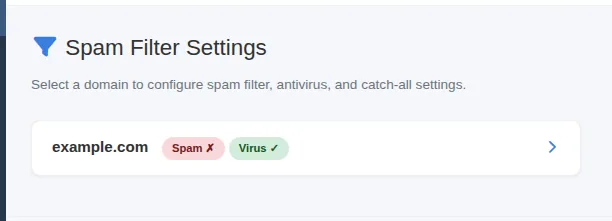
- Click your domain. The Edit Mail Domain page opens.
- Tick Spam Filter. Keep Anti-Virus ticked.
- Optionally tick Reject Spam (see below).
- Click Save at the top right.
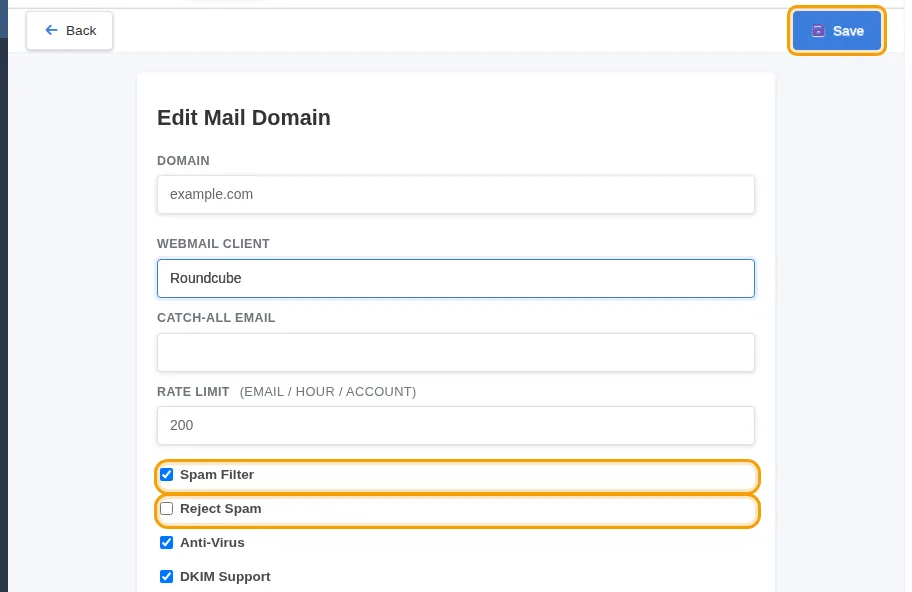
What the options do:
- Spam Filter: messages that look like spam are delivered to the Junk folder instead of the inbox.
- Reject Spam: messages that are almost certainly spam are refused when they arrive and never reach any mailbox. Less clutter, but you cannot look for them later, so start without it.
- Anti-Virus: messages carrying a virus are blocked.
2. Check the Junk folder
In webmail, suspected spam is in the Junk folder. Some mail apps call this folder Spam.
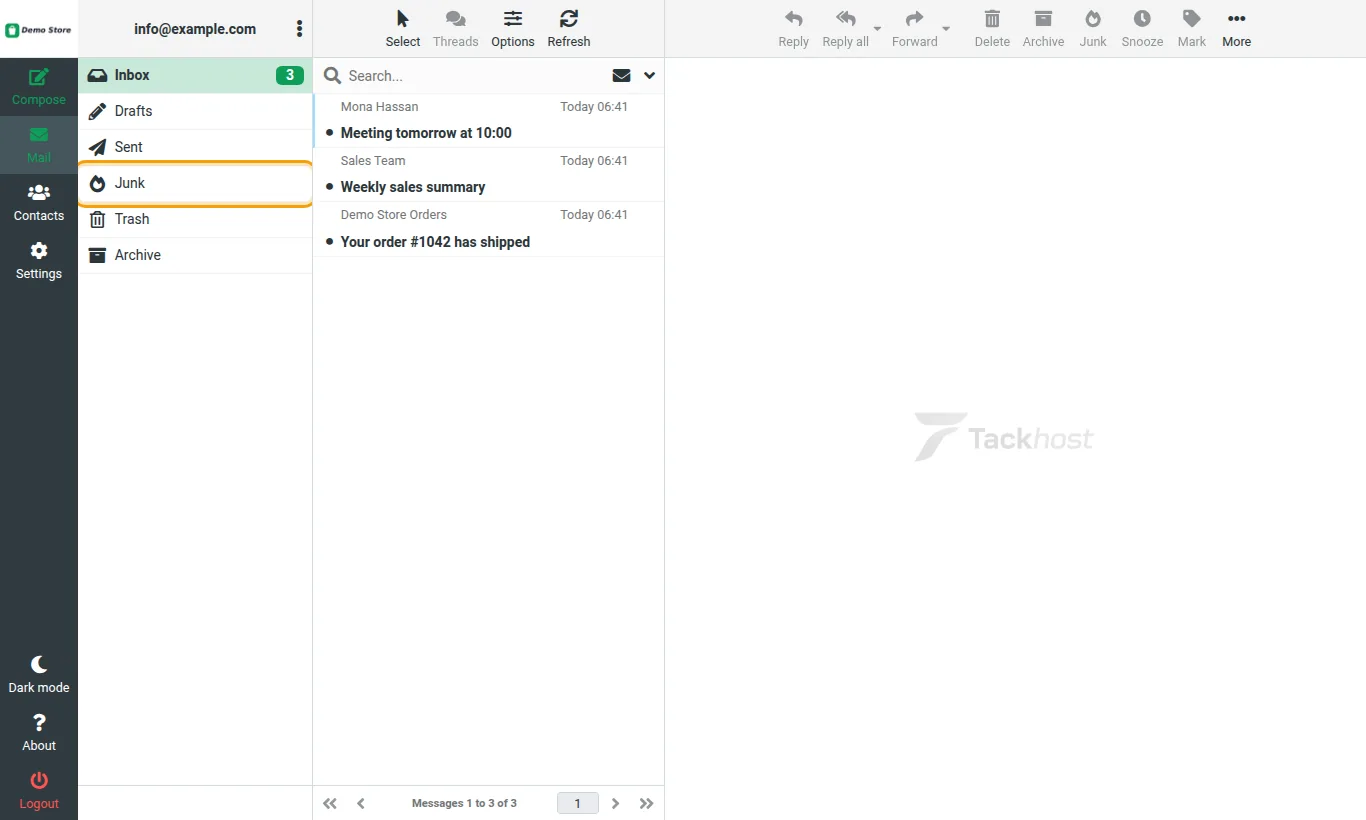
- A real message ended up in Junk: open the Junk folder, select the message and click Not junk. It goes back to your inbox.
- Spam reached your inbox: select it and click Junk in the toolbar. It moves to the Junk folder, and this helps the filter recognise similar messages.
Look through the Junk folder every few days, especially when you are waiting for an important message from someone new.
Good to know
- The setting is per mail domain. If you have several domains, switch it on for each one.
- Leave CATCH-ALL EMAIL on the same page empty unless you really need it: it collects mail sent to addresses that do not exist, which is mostly spam.
- No filter catches everything. Never reply to spam or click its links, and never send passwords by email.
- To sort mail from a particular sender automatically, create a rule in webmail under Settings > Filters.
- If your messages land in other people's spam folders, that is a different issue: see Stop your emails going to spam.
Need help? Open a support ticket and we will check your spam settings with you.