This article covers four things you may want to control on your website: sending visitors from one address to another (redirects), the page visitors see when something is missing (error pages), putting a password on a folder (directory privacy), and whether visitors can see a list of your files (indexes).
Where is this? In the hosting control panel (the panel you open from my.tackhost.com with Open Control Panel), not on the my.tackhost.com website itself.
Redirect a whole domain
Use this when a domain should send every visitor somewhere else, for example an old domain to your new one, or yourdomain.com to www.yourdomain.com.
-
Sign in to my.tackhost.com, open your hosting service and click Open Control Panel.
-
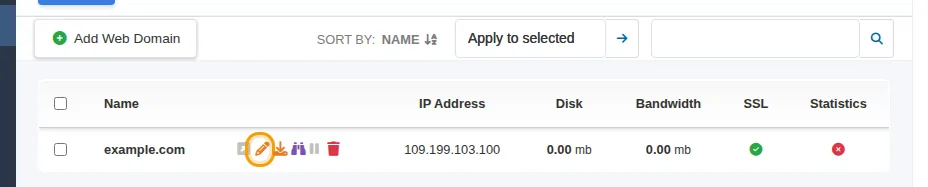
Click Domains in Quick Access. Click the domain name, or point at the domain and click the pencil (Edit Domain).
-
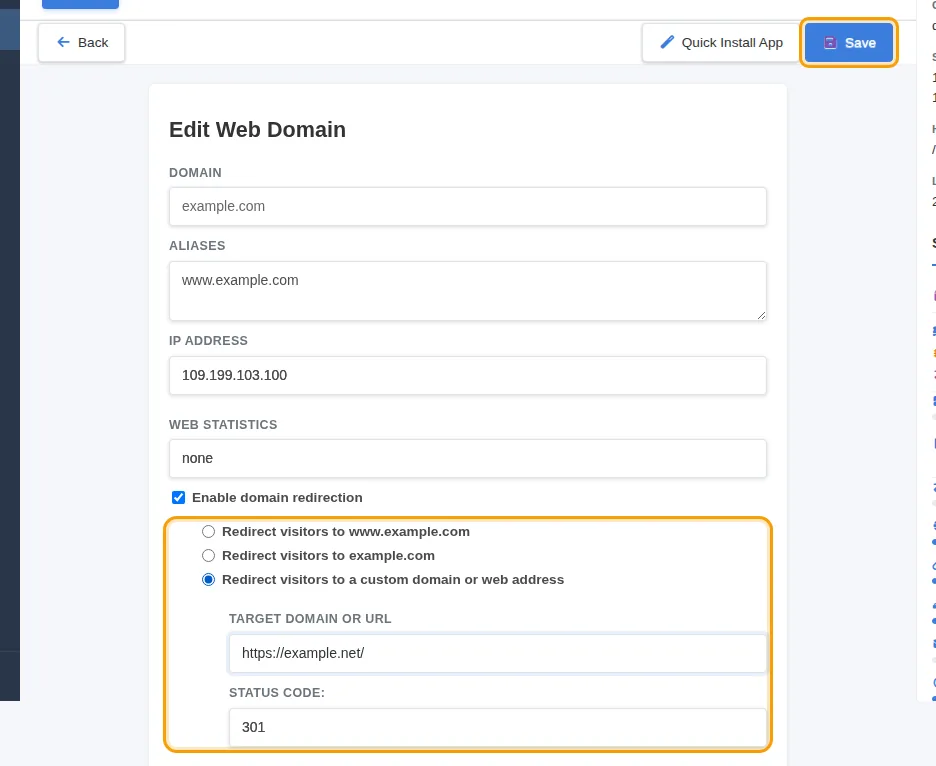
Tick Enable domain redirection and choose one option:
- Redirect visitors to www.yourdomain.com: always use the address with
www. - Redirect visitors to yourdomain.com: always use the address without
www. - Redirect visitors to a custom domain or web address: send visitors to another site. Type the address in Target domain or URL, for example
https://www.yournewdomain.com/.
- Redirect visitors to www.yourdomain.com: always use the address with
-
Choose the Status code: 301 for a permanent move (search engines move your ranking to the new address), 302 for a temporary one.
-
Click Save.
What visitors get with a custom address:
- If the target is just a domain, or ends with
/(likehttps://www.yournewdomain.com/), visitors keep the page they asked for:yourdomain.com/aboutgoes towww.yournewdomain.com/about. - If the target is a specific page (like
https://www.yournewdomain.com/welcome), every visitor lands on that one page.
To stop redirecting, open Edit Domain again, untick Enable domain redirection and click Save.
WordPress sites: if you choose the
wwwor the non-wwwoption, pick the same form that WordPress uses under Settings > General (WordPress Address and Site Address). If the two disagree, the browser keeps bouncing between them and the site does not open.
Sending visitors from http:// to https:// is a separate switch in the SSL settings of the same page. See Enable free SSL.
Redirect a single page
To send one old page to a new one (for example /old-offer to /new-offer) while the rest of the site stays as it is:
- WordPress: use a redirect plugin, such as Redirection, from Plugins > Add New in WordPress. You manage the redirects inside WordPress.
- Other sites: open a support ticket with the old and new addresses and we will add the redirect for you.
Error pages
When a visitor opens an address that is blocked or broken, the server shows a standard error page. WordPress sites show their own "page not found" page from the theme instead, for pages that do not exist.
If you want your own design for these server error pages, open a support ticket and we will set it up with you.
Password-protect a folder (directory privacy)
To put a username and password on a folder of your site, for example a folder with files only your staff should download, open a support ticket with the domain, the folder and the username you want. We will set it up and send you the details.
Indexes (file lists)
When a folder has no start page (index.html or index.php), some servers show visitors a list of all files in it. On your hosting this is switched off for every site: visitors get an "access denied" page instead, so they cannot browse your files. You do not need to do anything.
Need help? Open a support ticket and tell us which addresses should go where.