Your websites (WordPress, WooCommerce and most other site software) run on PHP. Two things about PHP matter to you: which version your site runs on, and the limits PHP works within, such as the largest file you can upload or how long a task may run. The defaults suit almost every site, so most customers never need to change anything.
Which PHP version your site uses
New sites run on PHP 8.3. The version is set per domain by TackHost, not in the control panel. To find out which version a WordPress site uses, sign in to WordPress and open Tools > Site Health > Info > Server.
Need a different version? For example, an older plugin needs PHP 8.2, or a new one needs PHP 8.4. Open a support ticket with the domain name and the version you need. We switch it for you.
Your PHP limits
| Limit | What it controls | Can you change it? |
|---|---|---|
| Memory limit | How much memory one page or task may use | Set by your plan. Larger plans allow more. |
Upload size (upload_max_filesize, post_max_size) |
The largest file you can upload through your site | Yes, see below |
Run time (max_execution_time) |
How many seconds one page or task may run | Yes, see below |
Input fields (max_input_vars) |
How many fields one form or settings page may send | Yes, see below |
To see the values that apply to a WordPress site, open Tools > Site Health > Info > Server in WordPress.
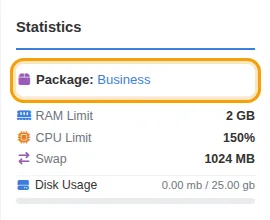
To check which plan you are on, look at Package in the Statistics panel at the side of the hosting control panel (open it from my.tackhost.com with Open Control Panel):
If a site needs more memory than your plan allows, upgrade your plan or open a support ticket and we will look at what is using the memory.
Change a limit for one site
You can change the upload size, run time and input fields for one website with a small settings file named .user.ini (the name starts with a dot).
-
On your computer, create a plain text file with only the lines you want to change, for example:
upload_max_filesize = 64M
post_max_size = 70M
max_execution_time = 120
max_input_vars = 5000
Keep
post_max_sizea little larger thanupload_max_filesize. -
Upload it with an FTP program into the
public_htmlfolder of the domain, and name it exactly.user.ini. See Upload files with FTP. -
Wait a few minutes, then check the new values in WordPress under Tools > Site Health > Info > Server.
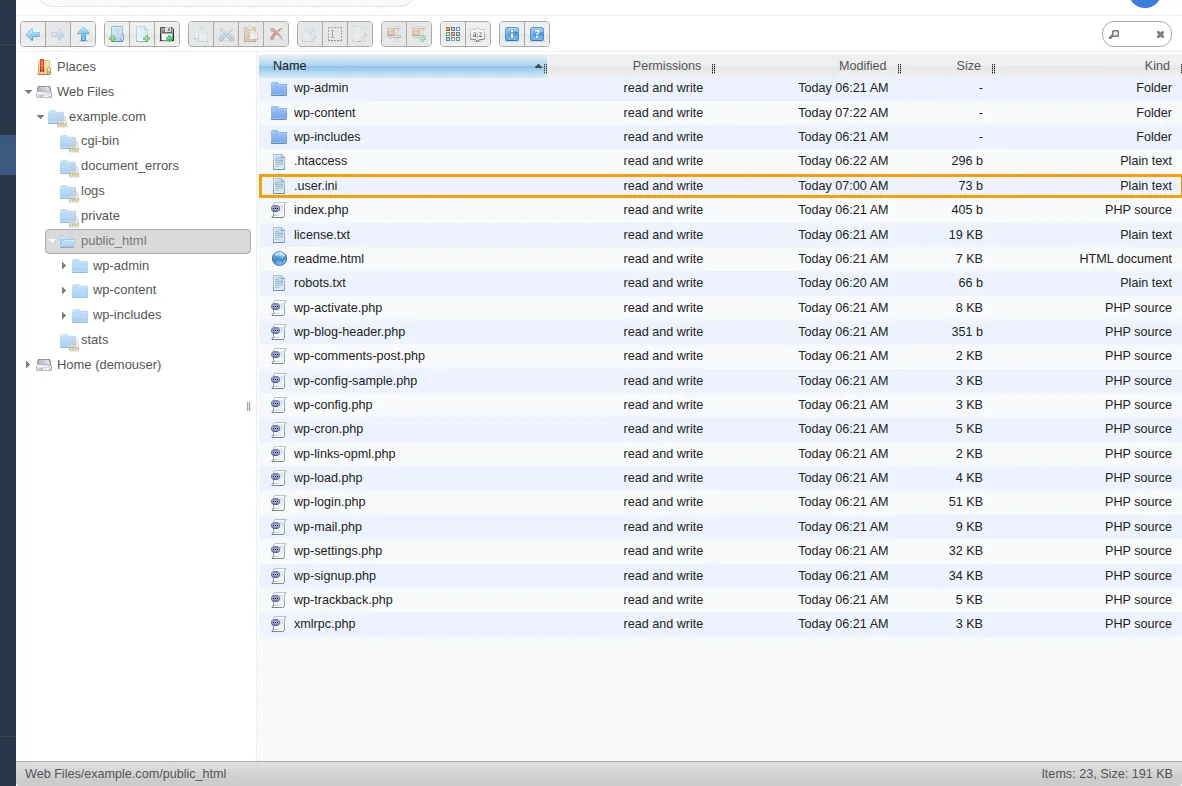
The file applies to that domain only. Afterwards you can also see it in the File Manager, in the domain's public_html folder:
To undo the change, delete the .user.ini file.
Good to know
- The memory limit cannot be raised with
.user.ini. Amemory_limitline in the file is ignored. - FTP programs often hide files that start with a dot. In FileZilla, choose Server > Force showing hidden files to see
.user.ini. - Higher is not always better. A very long run time can hide a slow plugin instead of fixing it. Raise a limit only when a task actually fails because of it.
Need help? Open a support ticket and tell us which site and which limit. We will change it for you.