Forwarding sends a copy of every message that arrives in a mailbox to another address, for example to a manager or to your personal phone. An automatic reply answers every sender with a message you write, for example while you are on holiday.
There are two places to set these up:
- the hosting control panel, where the person who manages the hosting account can set them for any mailbox;
- webmail, where each mailbox user can set an Out of Office reply with start and end dates.
Forward a mailbox (control panel)
- Sign in to my.tackhost.com, open your hosting service and click Open Control Panel.
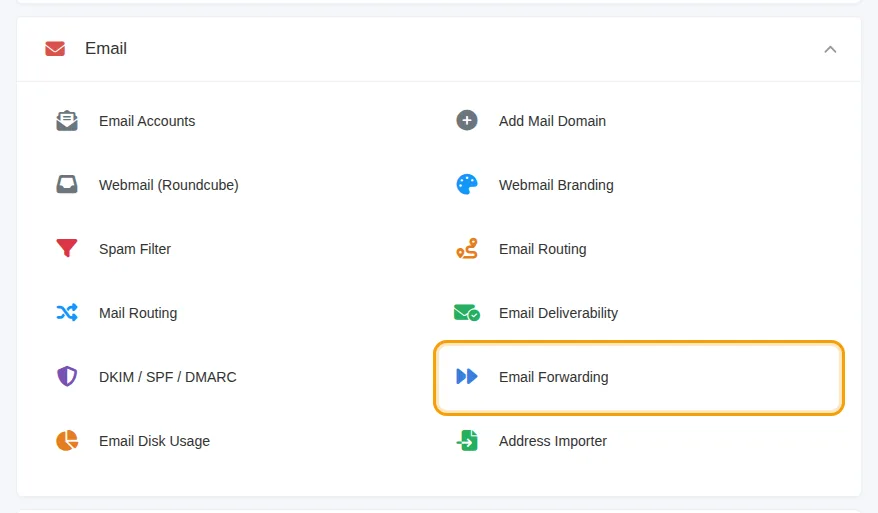
- On the Home page, click Email Forwarding in the Email section, then click your domain.
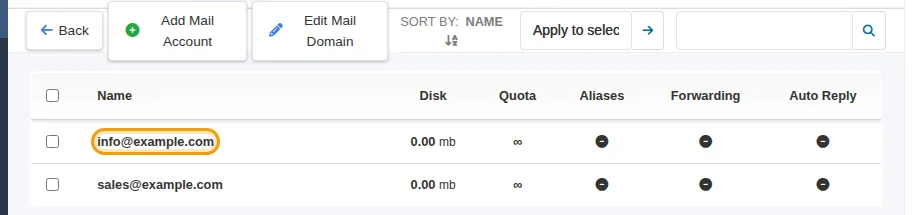
- Click the mailbox you want to forward, for example
info@yourcompany.com.
- In FORWARD TO, type the address that should receive the copies. To forward to several people, put one address per line.
- Leave Do not store forwarded mail unticked to keep a copy in this mailbox too (recommended). Tick it only if the messages should be forwarded and not kept here.
- Click Save at the top right.
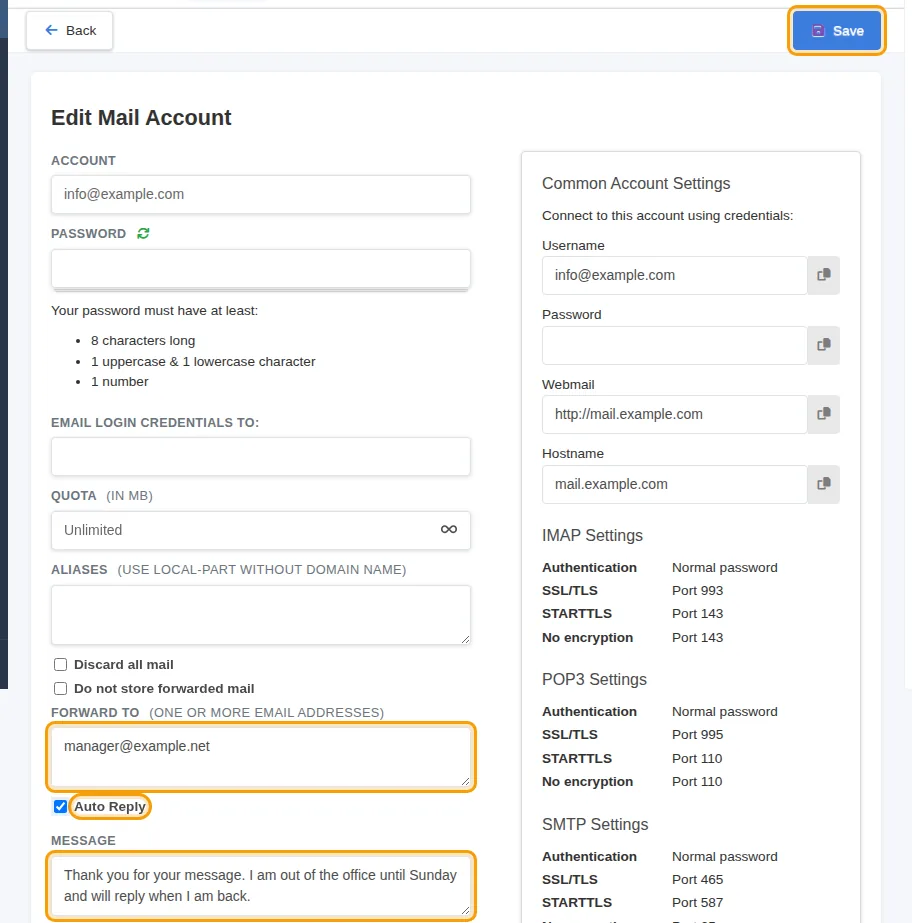
Careful: do not tick Discard all mail. It deletes every incoming message for this mailbox.
To stop forwarding, delete the address from FORWARD TO and click Save.
Automatic reply (control panel)
On the same mailbox page:
- Tick Auto Reply.
- Type your reply in MESSAGE, for example when you will be back and who to contact meanwhile.
- Click Save.
The reply is sent until you turn it off: untick Auto Reply and click Save when you are back. In the list of mailboxes, the Forwarding and Auto Reply columns show which mailboxes have them switched on.
Out of Office with dates (webmail)
Each user can also set their own reply in webmail, with a start and an end date so it switches off by itself:
- Sign in at
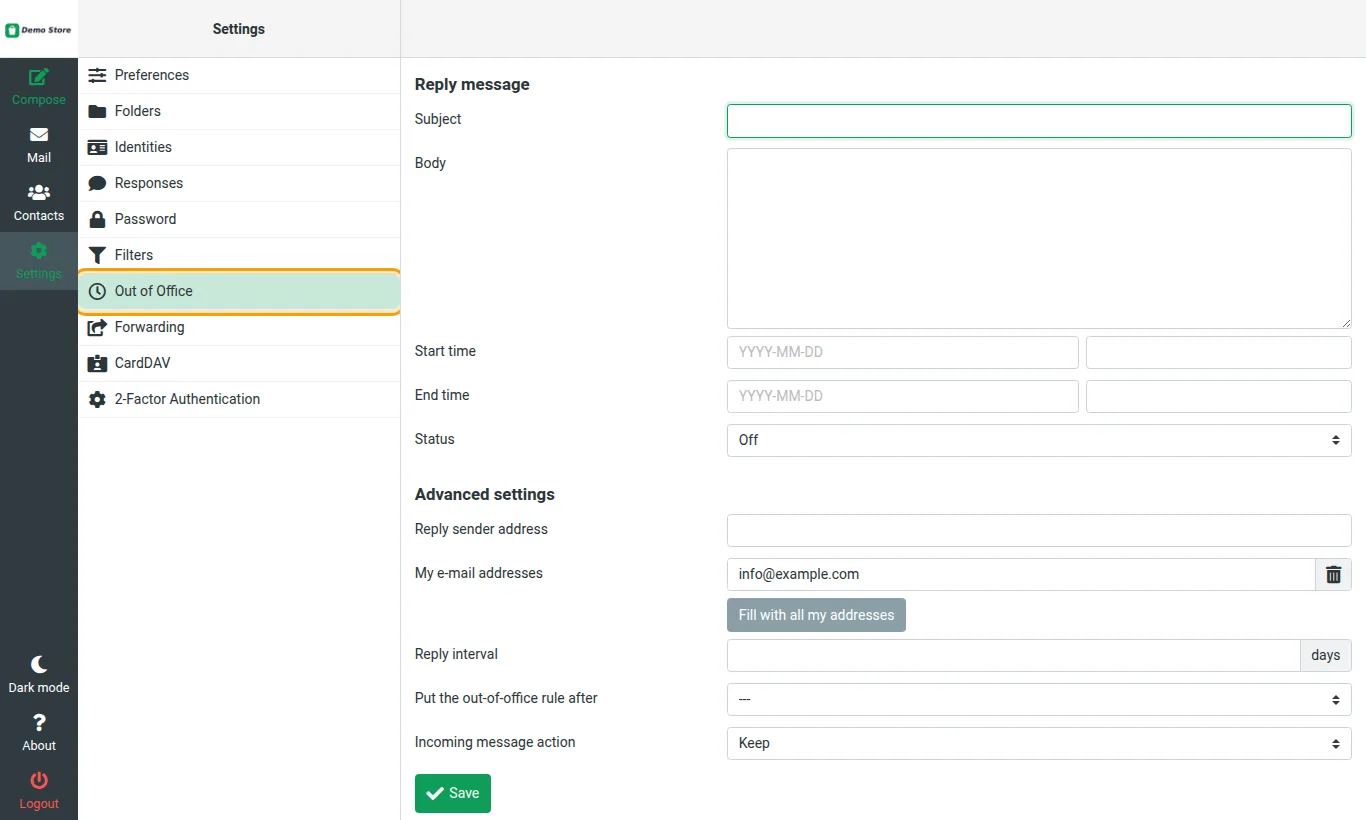
https://mail.yourcompany.comand click Settings > Out of Office. - Fill in Subject and Body.
- Choose the Start time and End time, set Status to On and click Save.
Users can forward their own mail in webmail too, under Settings > Forwarding.
Good to know
- Use one automatic reply at a time, either in the control panel or in webmail. With both switched on, senders may receive two replies.
- If you forward to Gmail, Outlook.com or similar, keep the spam filter switched on, so that spam is not forwarded along with your real mail.
- Aliases on the same page add extra addresses that deliver into this mailbox, for example
contactforcontact@yourcompany.com, without creating a new mailbox.
Need help? Open a support ticket and we will set it up for you.