Your webmail can show your company's logo, name and colour instead of the TackHost look. Your team and your customers see your brand on the login page and inside the inbox, on computers and on phones.
You set this up yourself in the hosting control panel. It takes about two minutes and you can change it or undo it at any time.
Where is this? In the hosting control panel (the panel you open from my.tackhost.com with Open Control Panel), not on the my.tackhost.com website itself.
1. Open Webmail Branding
- Sign in to my.tackhost.com, open your hosting service and click Open Control Panel.
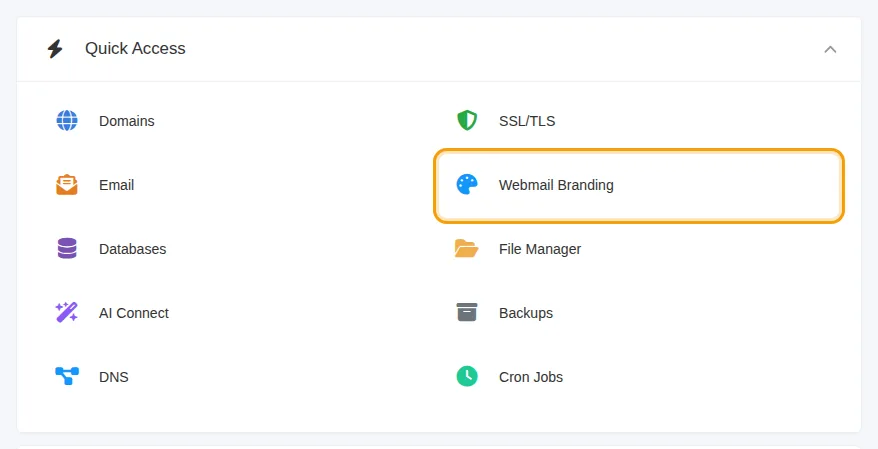
- On the control panel Home page, click Webmail Branding in Quick Access. (You can also find it under Email.)
2. Fill in your brand
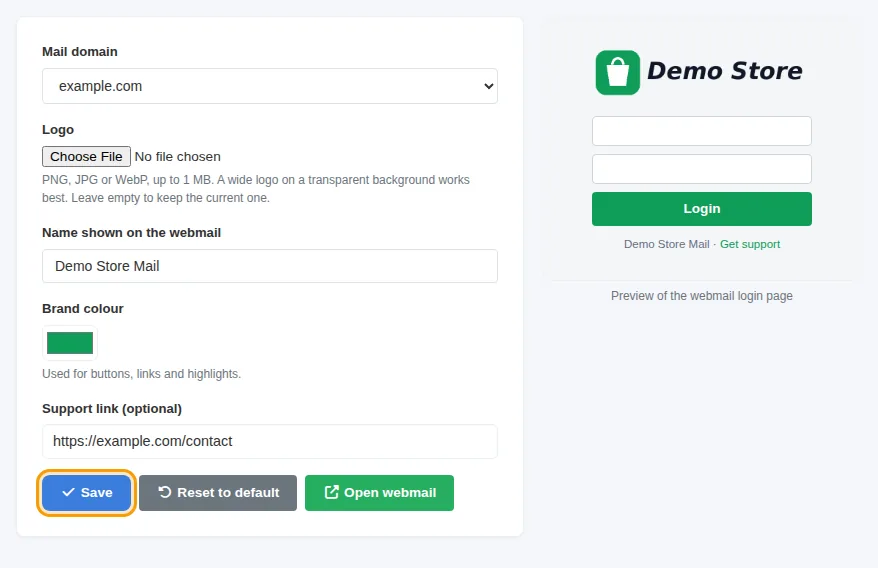
- Mail domain: choose the domain whose webmail you want to brand, for example
yourcompany.com. Each mail domain has its own look. - Logo: upload your logo. PNG, JPG or WebP, up to 1 MB. A wide logo on a transparent background looks best. Leave it empty to keep the logo you already uploaded.
- Name shown on the webmail: for example Your Company Mail. It appears under the login button and in the browser tab.
- Brand colour: used for buttons, links and highlights.
- Support link (optional): a page where your team can get help, for example your IT contact page. It must start with
https://. - Click Save.
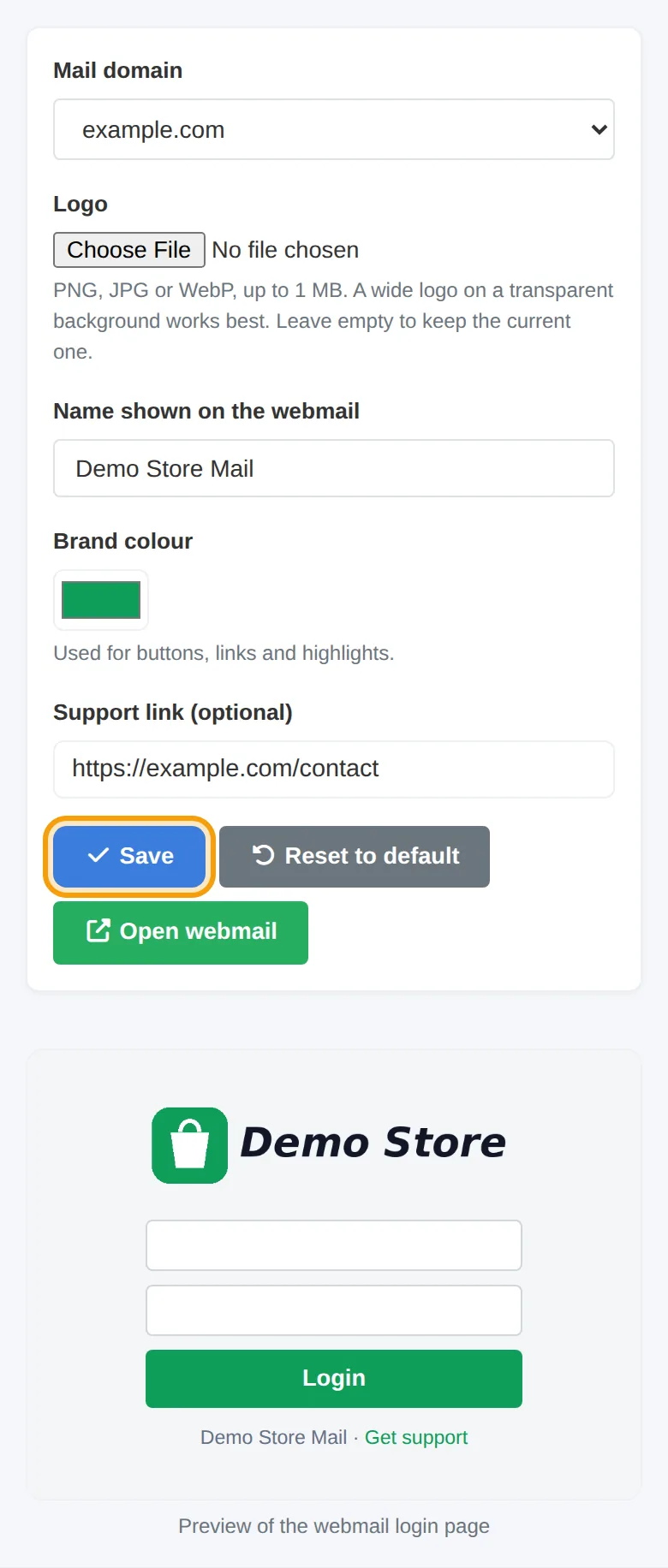
The preview on the right shows how the login page will look before you save. On a phone the preview appears under the form:
3. Check the result
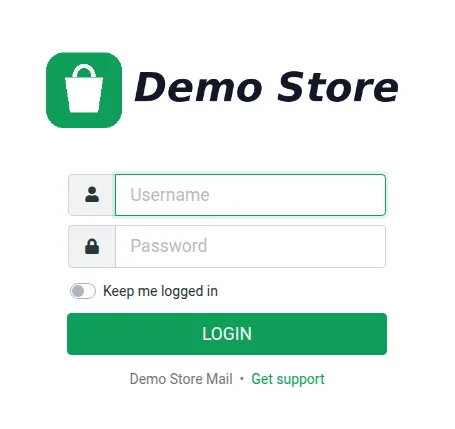
Click Open webmail, or go to https://mail.yourcompany.com. The new look appears straight away:
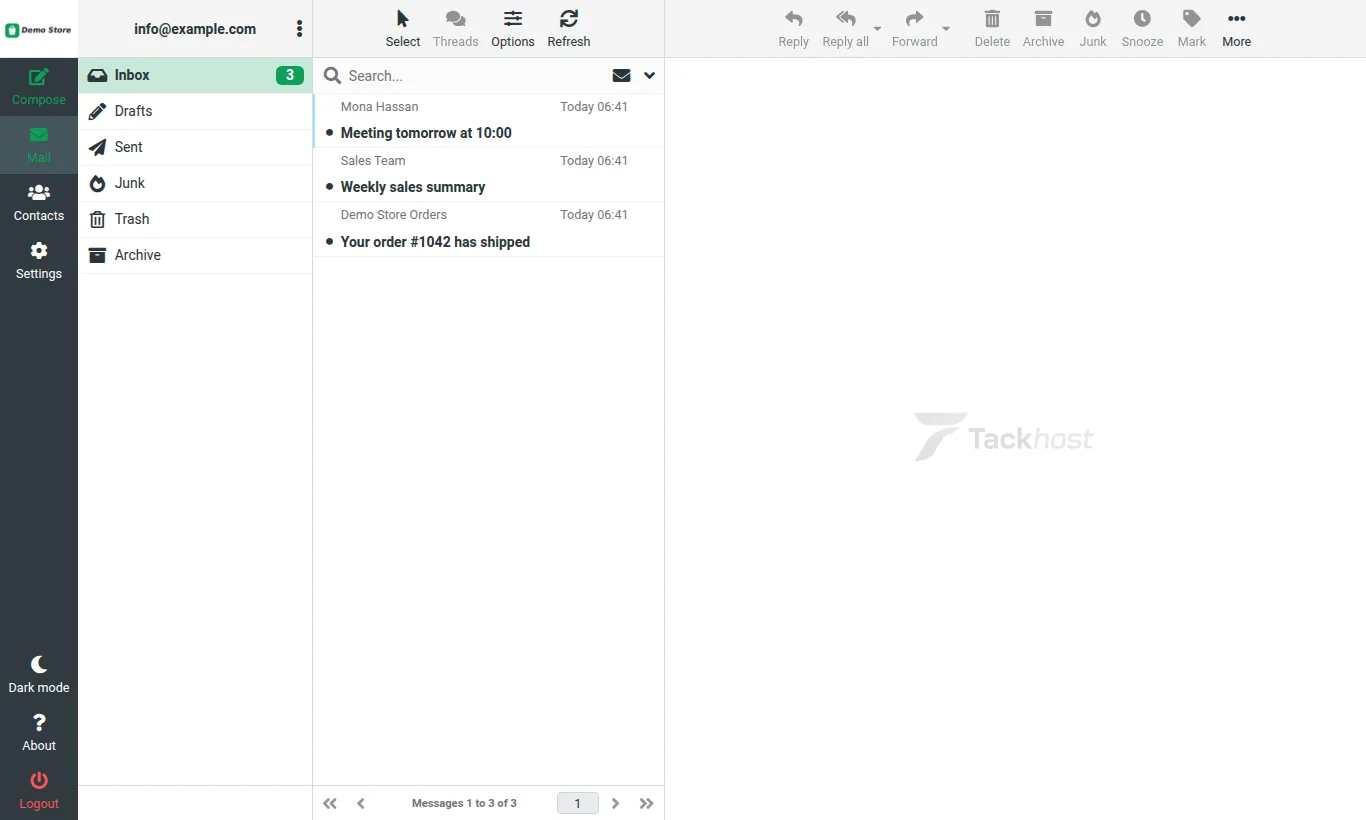
Inside the inbox, your logo replaces the TackHost logo in the top corner and your colour is used for buttons and highlights:
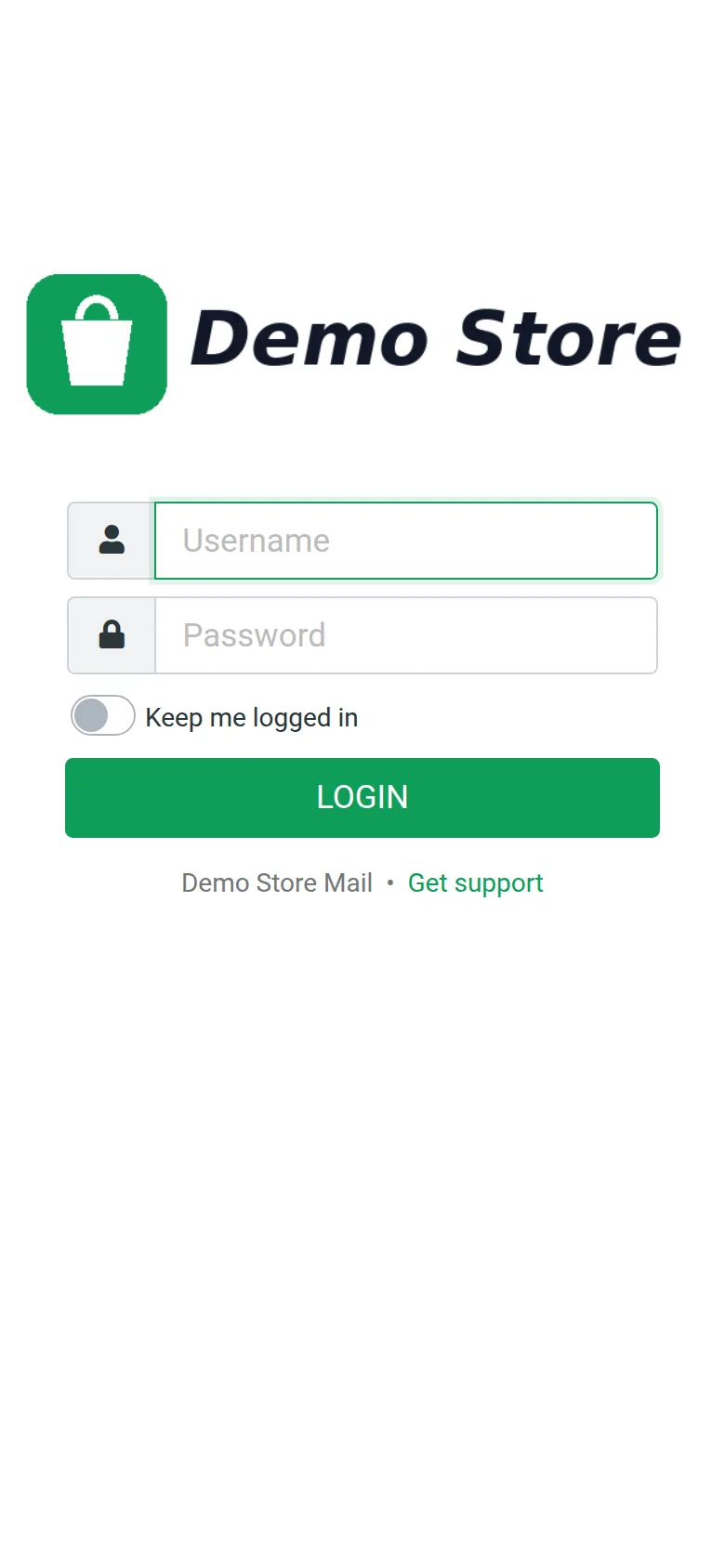
On phones the login page looks like this:
Change it or go back
- Change something: open Webmail Branding again, change the field and click Save. To keep your current logo, simply leave the logo field empty.
- Go back to the TackHost look: click Reset to default and confirm.
Good to know
- The branding applies to the webmail address of that domain,
https://mail.yourcompany.com. Make sure the people who use it open that address. - Your logo is checked and converted to a safe image when you save, so SVG files are not accepted. Export your logo as PNG instead.
- If the page still shows the old logo, refresh it once (your browser may have kept the old one).
Need help? Open a support ticket and we will set it up with you.