With 2-factor authentication, signing in to webmail needs two things: your password and a 6-digit code from an app on your phone. Even if someone learns your password, they cannot open your mailbox in webmail without your phone.
Each mailbox turns it on for itself, in its own webmail settings. It takes about three minutes.
Before you start: install a free authenticator app on your phone, for example Google Authenticator or Microsoft Authenticator.
1. Open the 2-Factor Authentication page
- Sign in to your webmail at
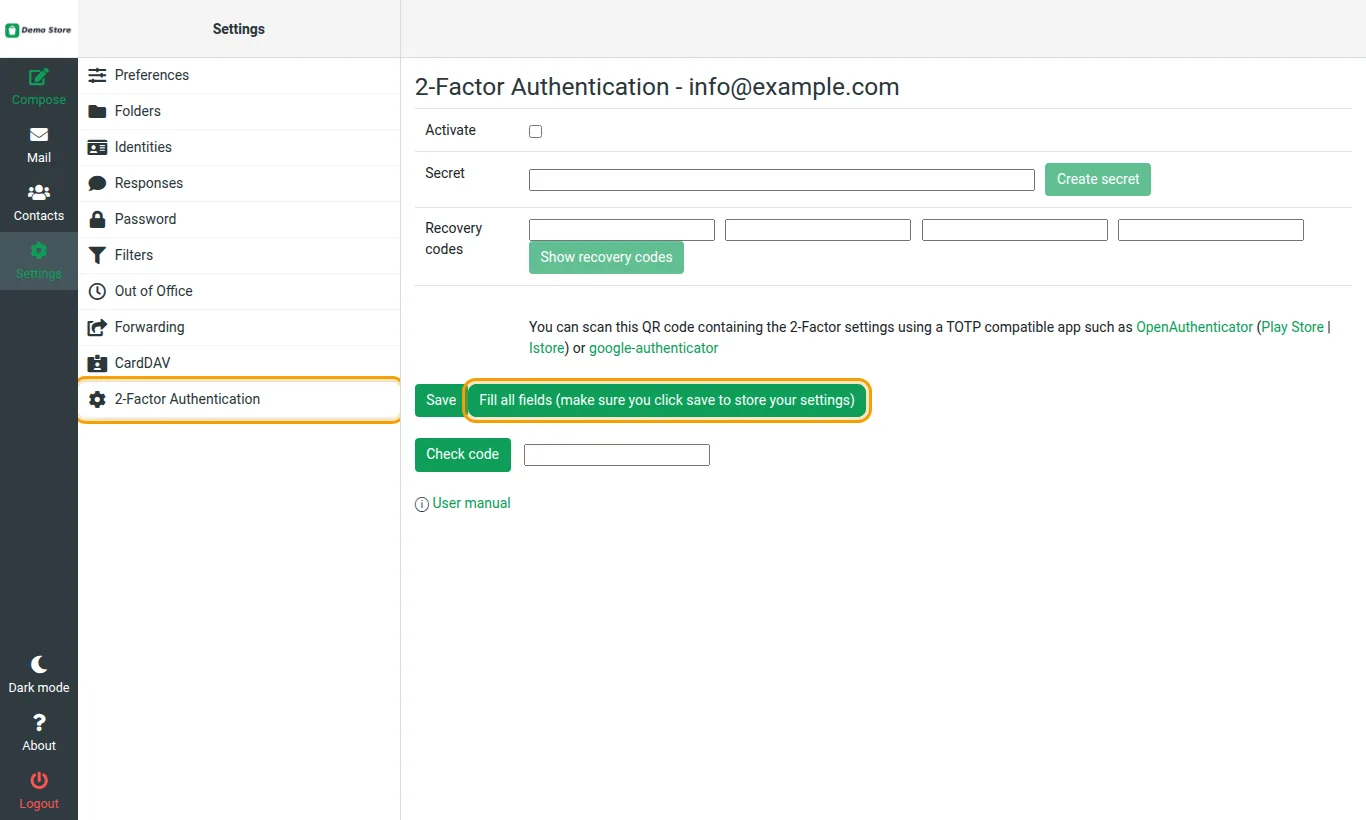
https://mail.yourcompany.com(see Read your email in the browser). - Click Settings, then 2-Factor Authentication.
2. Create your secret and recovery codes
- Click Fill all fields (make sure you click save to store your settings). A message asks you to scan the QR code and enter the current code; click OK.
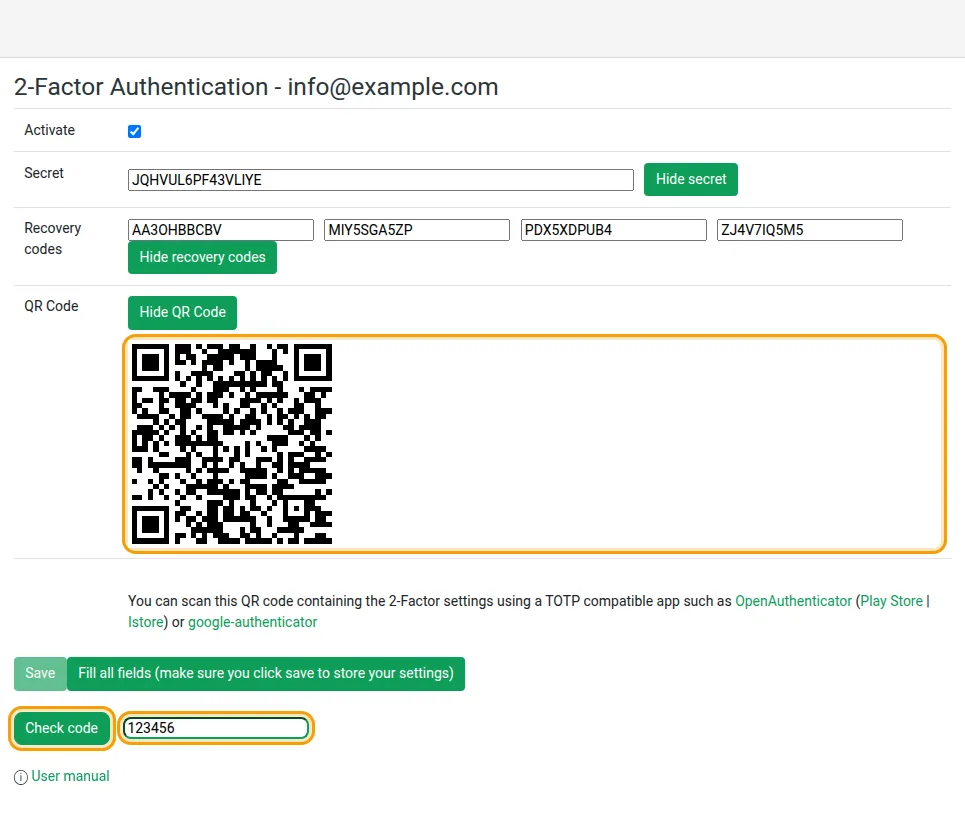
- The page now ticks Activate and fills in a Secret, four Recovery codes and a QR Code.
- Write down the four recovery codes and keep them somewhere safe, away from your phone. Each one can be used once instead of the app code if you ever lose your phone.
- Open the authenticator app on your phone, tap + (add) and scan the QR code on the screen. If you cannot scan it, choose to enter a key in the app and type the Secret instead.
3. Check the code and save
- The app now shows a 6-digit code for your mailbox that changes every 30 seconds. Type the current code in the box next to Check code and click Check code.
- You should see Code OK. If you see Incorrect code, wait for the next code and try again.
- Save only becomes available after a correct code. Click Save. You see 2-Factor authentication settings saved successfully.
What happens when you sign in
After you type your email address and password, webmail asks for a code. Open the app, type the code shown for your mailbox and continue. If the code is wrong, webmail returns you to the login page; sign in again with the next code.
On your own computer you can tick Don't ask me codes again on this computer for 30 days. Never tick it on a shared computer.
If you lose your phone
- You have your recovery codes: type one of them instead of the app code when you sign in. Each recovery code works only once. Then open a support ticket so we can reset 2-factor authentication for that mailbox, and set it up again on your new phone.
- You do not have your recovery codes: open a support ticket from my.tackhost.com. For your security we confirm that you are the account owner before we turn it off.
Good to know
- 2-factor authentication protects webmail sign-in. Mail apps such as Outlook, iPhone Mail and the Gmail app still sign in with the password only, so keep a strong password that you do not use anywhere else.
- It is set per mailbox: turning it on for
info@does not changesales@. - To turn it off: open Settings > 2-Factor Authentication, untick Activate and click Save.
- Codes are based on the time, so keep your phone's clock on automatic time.
- The customer portal and the hosting control panel have their own 2-factor authentication: see Keep your account secure.
Need help? Open a support ticket and we will guide you through it.