When your site shows an error, loads a blank page or behaves strangely, the website logs usually tell you why. And when you want to know how many people visit your site, visitor statistics answer that. Both are in the hosting control panel.
Where is this? In the hosting control panel (the panel you open from my.tackhost.com with Open Control Panel), not on the my.tackhost.com website itself.
1. Open your website's logs
- Sign in to my.tackhost.com, open your hosting service and click Open Control Panel.
- Click Domains in Quick Access.
- Point at your domain and click the binoculars (View Logs).
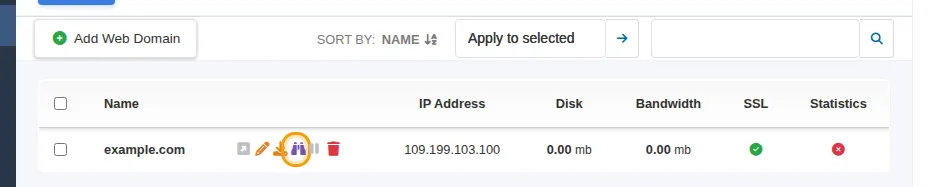
The page shows the last 70 lines of the access log, the newest at the bottom.
2. Read the access log
The access log has one line for every request to your site:
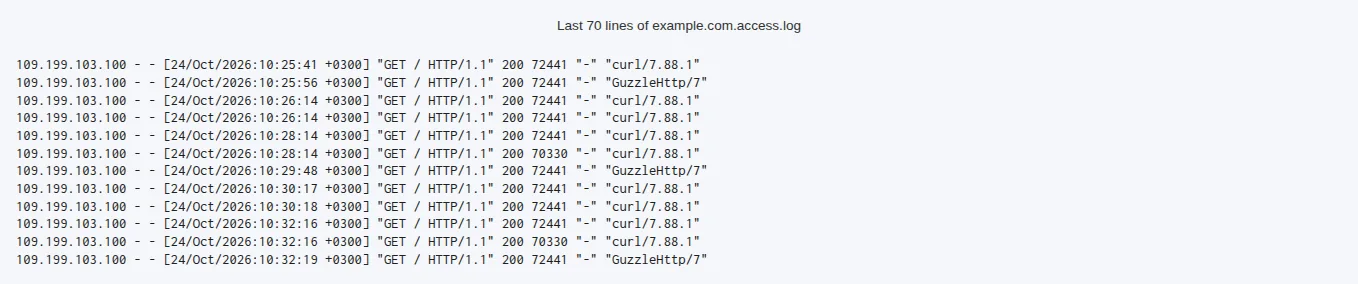
From left to right, each line shows: the visitor's IP address, the date and time (server time, Egypt), what was requested (for example GET /contact), the status code, the size of the answer, and the visitor's browser or program.
The status code is the most useful part:
| Code | Meaning |
|---|---|
| 200 | OK, the page was delivered |
| 301 / 302 | Redirected to another address |
| 403 | Access denied |
| 404 | Not found: a missing page, image or file |
| 500 / 502 / 503 | Error on the server side: look in the error log |
Many lines from the same IP address within seconds usually mean a bot or a crawler, not a person.
3. Read the error log
The error log records what went wrong when your site ran. To open it, open View Logs as above, then in your browser's address bar change type=access at the end of the address to type=error and press Enter.

What to look for:
PHP Fatal error: this stops the page from loading and is the usual cause of a blank page or a "critical error" message in WordPress.PHP WarningorPHP Notice: something is not right, but the page still loads.- The file path in the line shows where the problem is. In WordPress, a path containing
wp-content/plugins/<name>/points to that plugin, andwp-content/themes/<name>/to your theme. Deactivating that plugin is often the quickest fix. - The time at the start of the line. Compare it with the moment the problem happened.
4. Visitor statistics
The panel can build daily visitor reports for a domain (visits, the most viewed pages, the browsers used and the sites visitors came from).
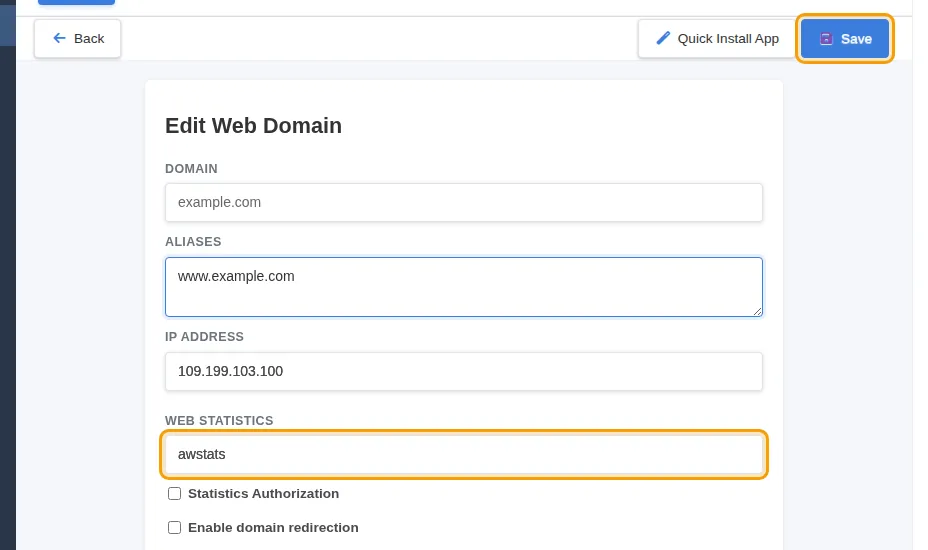
- In Domains, click the domain name, or point at it and click the pencil (Edit Domain).
- Under Web Statistics, choose awstats.
- Optional: tick Statistics Authorization and set a username and password, so only you can open the reports.
- Click Save.
The reports are at https://yourdomain.com/vstats/, and a chart button (Statistics) appears next to the domain in the Domains list. They are updated once a day, so the first report appears the day after you switch them on.
These reports count every visit recorded by the server, bots included. For detailed marketing figures, a tool inside your site such as Google Analytics shows more.
5. The monthly account summary
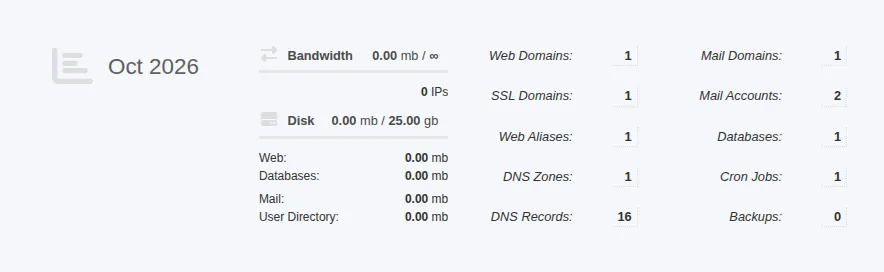
The Visitors & Statistics tile (under Metrics on the Home page) opens a monthly summary of your account, not of your visitors: the bandwidth (data sent to visitors) and disk space used, and how many domains, mailboxes, databases and cron jobs you have. These figures are updated once a day.
Note: the Error Logs tile under Metrics opens the panel's activity log: a list of changes made in your control panel (domains, mailboxes, cron jobs and so on) with Login History. It does not contain your website's errors. For those, use step 3.
Good to know
- Only the last 70 lines are shown. Open the log right after the problem happens, or reproduce the problem and then open the log.
- An empty error log is a good sign: nothing went wrong recently.
- Not sure what a line means? Copy it into your ticket. It helps us find the cause much faster.
Need help? Open a support ticket with your domain, the time the problem happened and any error lines you found.