Setting up email for a whole team? The Address Importer creates many mailboxes in one go: you paste a list of names and passwords, and every mailbox is ready a moment later.
Good to know: the Address Importer creates new, empty mailboxes. It does not copy old messages from another email provider. If you want to move your existing email to TackHost, open a support ticket and we will help you.
1. Open the Address Importer
- Sign in to my.tackhost.com, open your hosting service and click Open Control Panel.
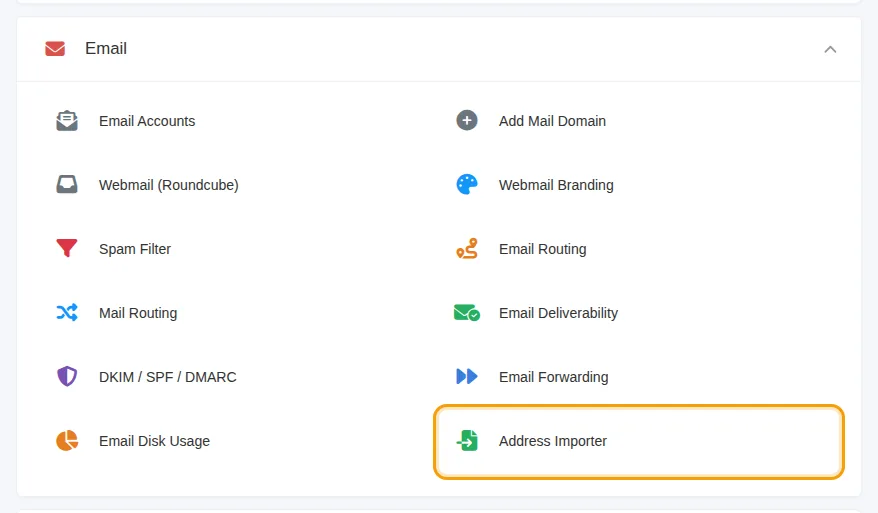
- On the Home page, click Address Importer in the Email section.
2. Paste your list
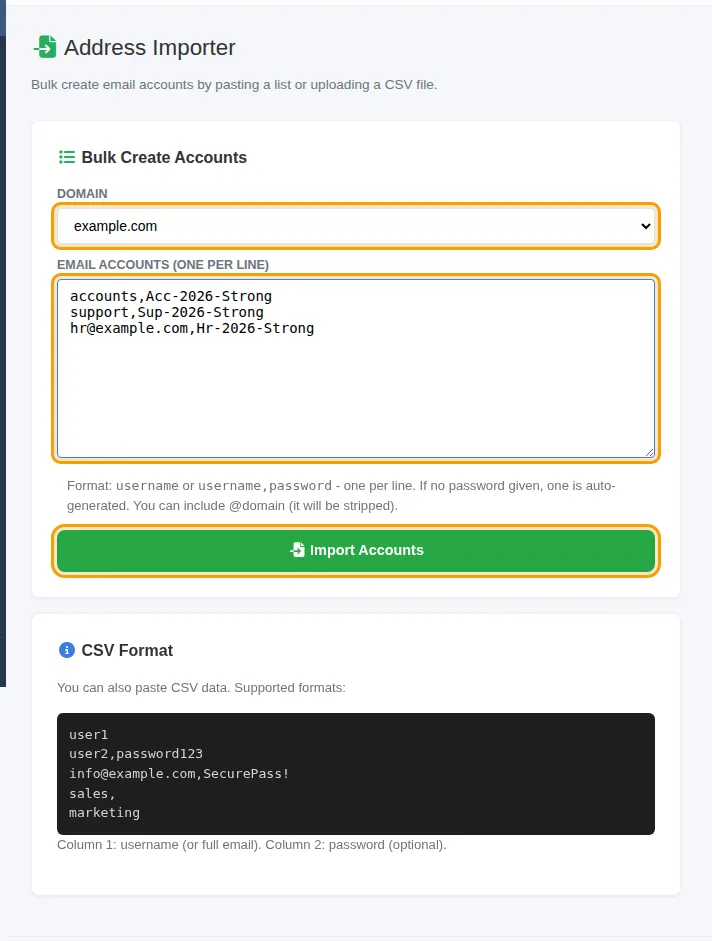
- Domain: choose the domain for the new addresses, for example
yourcompany.com. - Email Accounts (one per line): type one mailbox per line: the name, a comma, then the password (see the example below).
- Click Import Accounts.
For example, this list creates accounts@, support@ and hr@yourcompany.com:
accounts,Acc-2026-Strong
support,Sup-2026-Strong
hr,Hr-2026-Strong
You may also write the full address, such as hr@yourcompany.com,Hr-2026-Strong; the @yourcompany.com part is ignored.
A green message tells you how many accounts were created. If some lines failed, for example because that mailbox already exists, a red message lists them; the other lines are still created.
Always include a password
If a line has no password, the importer makes one up, but it does not show it to you anywhere. Nobody can sign in to that mailbox until you set a new password in Email Accounts (see Create an email account). So write a password on every line.
Use a different, strong password for each mailbox: at least 8 characters with capital and small letters and a number. The importer does not check password strength for you.
Good to know
- Names may contain letters, numbers, dots, dashes and underscores. Capital letters become small letters, and any other characters are removed.
- There is no file upload: paste the text into the box. If you prepared the list in Excel, save it as CSV, open the CSV file in Notepad and copy from there. Copying cells straight from Excel joins the name and password together.
- Send each person their address and password privately, and ask them to sign in to webmail at
https://mail.yourcompany.com(see Read your email in the browser).
Need help? Open a support ticket and send us the list of names; we will create the mailboxes for you.