Most websites (WordPress, online shops, custom applications) keep their content in a MySQL database. This guide shows how to create a database for your own application and how to open it in phpMyAdmin to view, import or export data.
If you install WordPress or another app with Quick Install App, the database is created for you. See Install WordPress.
Where is this? In the hosting control panel. Open it from my.tackhost.com > Services > your hosting plan > Open Control Panel.
1. Open your databases
Click Databases in Quick Access on the Home page, or the DB tab at the top. You see your databases with their size, user name and host.

2. Create a database
- Click Add Database.
- Database: a short name, for example
shop. Your account name is added in front automatically, so the full name becomes something likeyouraccount_shop. The full name appears under the field. - Username: the database user your application will sign in with, for example
shop. It gets the same prefix. - Password: type a strong password or click the green arrows to generate one. Copy it now: your application needs it.
- Email login credentials to (optional): an address that should receive these details.
- Leave Type as
mysqland click Save at the top of the page.
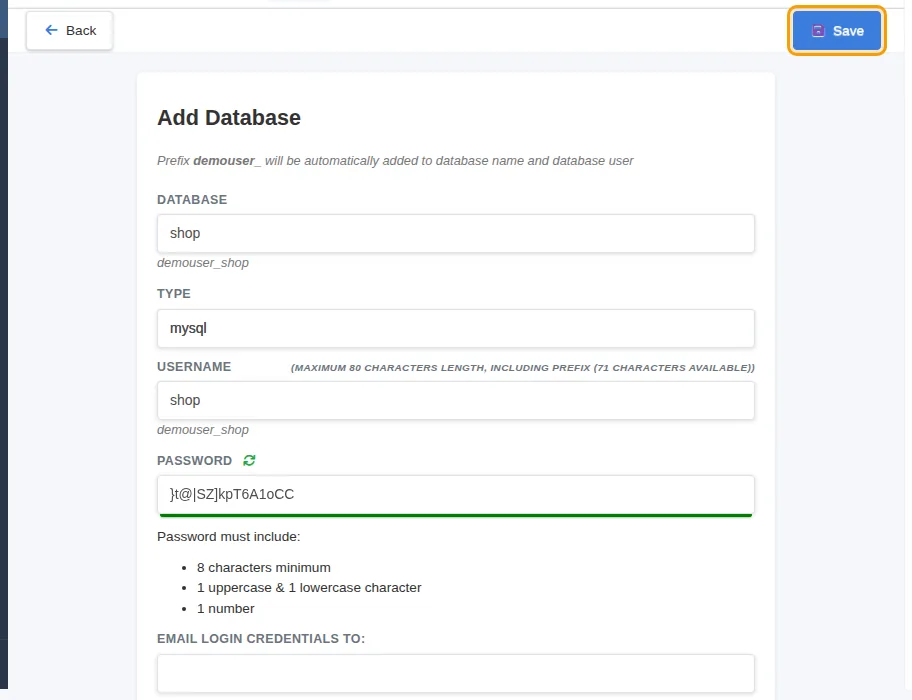
Your application's settings then need:
| Setting | Value |
|---|---|
| Database host | localhost |
| Database name | the full name, for example youraccount_shop |
| Database user | the full user name, for example youraccount_shop |
| Password | the password you set |
3. Open phpMyAdmin
- On the database list, click phpMyAdmin. It opens in a new tab.
- If phpMyAdmin asks you to log in, enter the database full user name and its password, then click Log in.
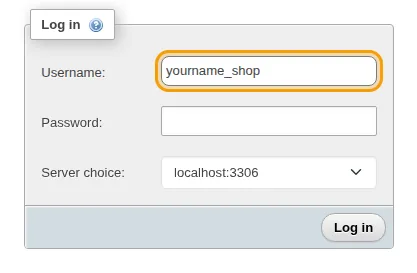
In phpMyAdmin, choose your database on the left. Use Import to load a .sql file and Export to download a copy of the database.
You can also open phpMyAdmin from the portal: on your hosting service page, click phpMyAdmin under Quick Actions.
Good to know
- Forgot a database password? On the database list, click the database name, enter a new password and click Save. Then update the password in your application's settings too.
- Download a database without phpMyAdmin: hover over the database in the list and click the download icon.
- Deleting a database deletes all its data for good. Download a copy first.
- Database sizes count towards your plan's disk space. See the right-hand column of the panel Home page.
Troubleshooting
- "Access denied" in phpMyAdmin or in your application: use the full user name with the prefix, and check the password.
- A large
.sqlimport fails in phpMyAdmin: compress the file as.zipor.gzand import again, or open a support ticket and we will import it for you.
Need help? Open a support ticket and we will help you connect your application.