A cron job runs a command for you automatically at the times you choose: every night, every hour, every Monday morning. Websites use them for things like sending scheduled emails, clearing old data, importing products or running WordPress's own scheduled tasks on time.
You add and manage cron jobs yourself in the hosting control panel.
Where is this? In the hosting control panel (the panel you open from my.tackhost.com with Open Control Panel), not on the my.tackhost.com website itself.
1. Open Cron Jobs
- Sign in to my.tackhost.com, open your hosting service and click Open Control Panel.
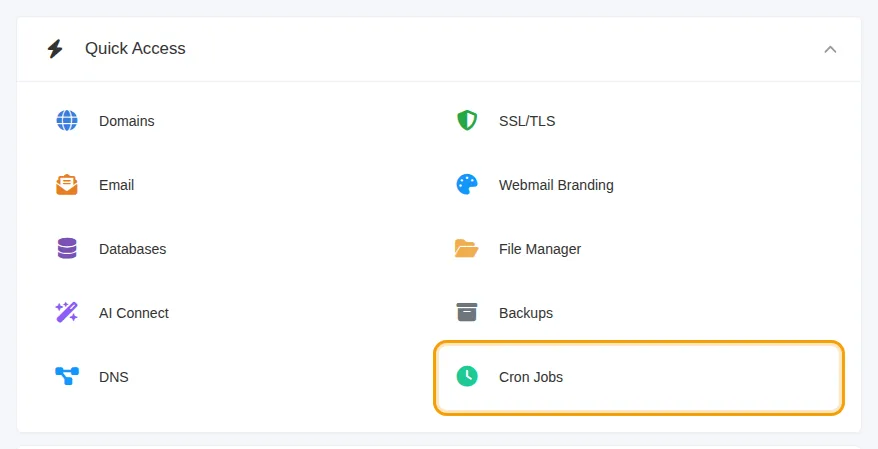
- On the control panel Home page, click Cron Jobs in Quick Access. (You can also find it under Advanced, or use the CRON tab at the top of the panel.)
2. See the jobs you already have
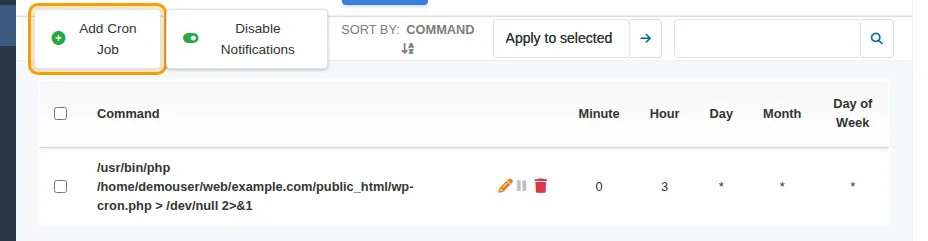
The page lists every scheduled job with its command and its timing (Minute, Hour, Day, Month, Day of Week). A * means "every". For example 0 3 * * * means every day at 03:00.
Point at a job to see its buttons: the pencil edits it, the pause button stops it for now without deleting it, and the bin deletes it.
3. Add a new job
-
Click Add Cron Job.
-
In Command, type what should run. Two common examples:
- Run a PHP file of your site:
/usr/bin/php /home/USERNAME/web/yourdomain.com/public_html/script.php - Run WordPress's scheduled tasks:
/usr/bin/php /home/USERNAME/web/yourdomain.com/public_html/wp-cron.php > /dev/null 2>&1
Replace
USERNAMEwith your control panel username (shown under Home Directory in the information panel at the side) andyourdomain.comwith your domain. - Run a PHP file of your site:
-
Set the timing. The easy way is the helper box on the right: pick a tab (Minutes, Hourly, Daily, Weekly or Monthly), choose the options, then click Generate. It fills in the five timing fields for you.
-
Click Save.
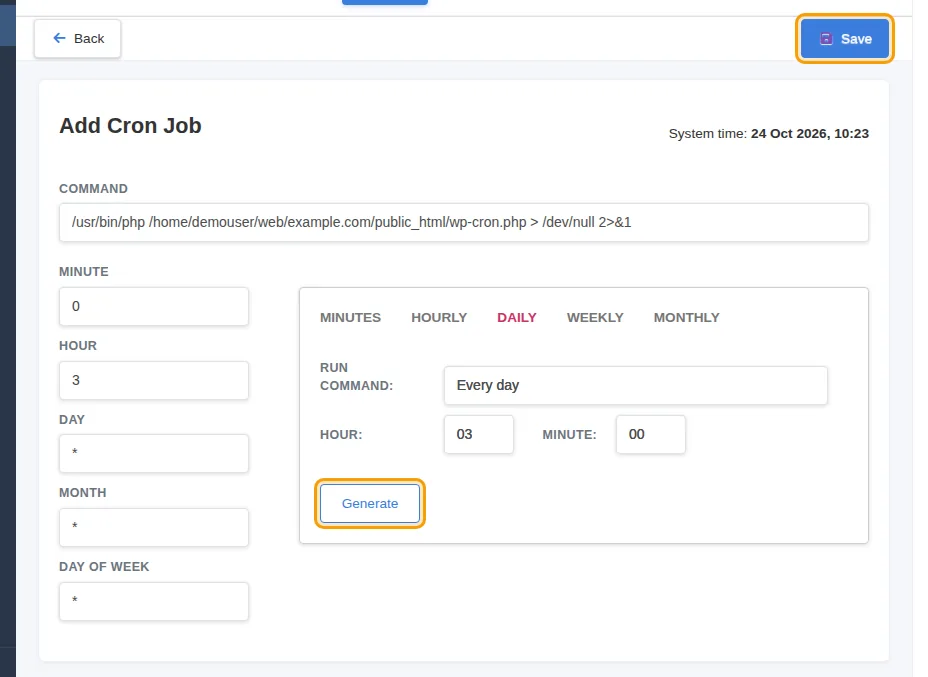
The times are server time (Egypt time). The form shows the current System time at the top right so you can check.
Change, pause or delete a job
- Change it: click the pencil next to the job, edit the command or timing and click Save.
- Pause it: click the pause button. The job stays in the list but does not run until you resume it.
- Delete it: click the bin and confirm.
Emails from your cron jobs
When a job prints anything, the panel emails that output to your account's contact email address. This is useful while you test a new job. To stop the emails:
- For one job: add
> /dev/null 2>&1to the end of its command (as in the WordPress example above). - For all jobs: click Disable Notifications at the top of the Cron Jobs page.
Good to know
- Do not run jobs more often than you need. Every minute is rarely necessary; every 5 or 15 minutes is enough for most tasks. Very frequent heavy jobs can slow your site down.
- Avoid the
%sign in commands. The scheduler treats%as the end of the command, so anything after it is cut off. Put the command in a script file and run the file instead. - Each plan has a limit on the number of cron jobs. If you cannot add more, delete the ones you no longer need, or upgrade your plan.
- A job did not run? Test the same command again with notifications on: the email shows the error. Check that the path to the file is complete and starts with
/home/.
Need help? Open a support ticket and tell us what the job should do and how often. We will set it up with you.